TL;DR:
- Fast screenshot tools save small teams over 10 hours per project by automating tedious exports.
- Methods include templates for non-designers, automation via Fastlane for large-scale, and native Mac apps.
- Proper review and understanding device-specific issues are essential to avoid submission rejections.
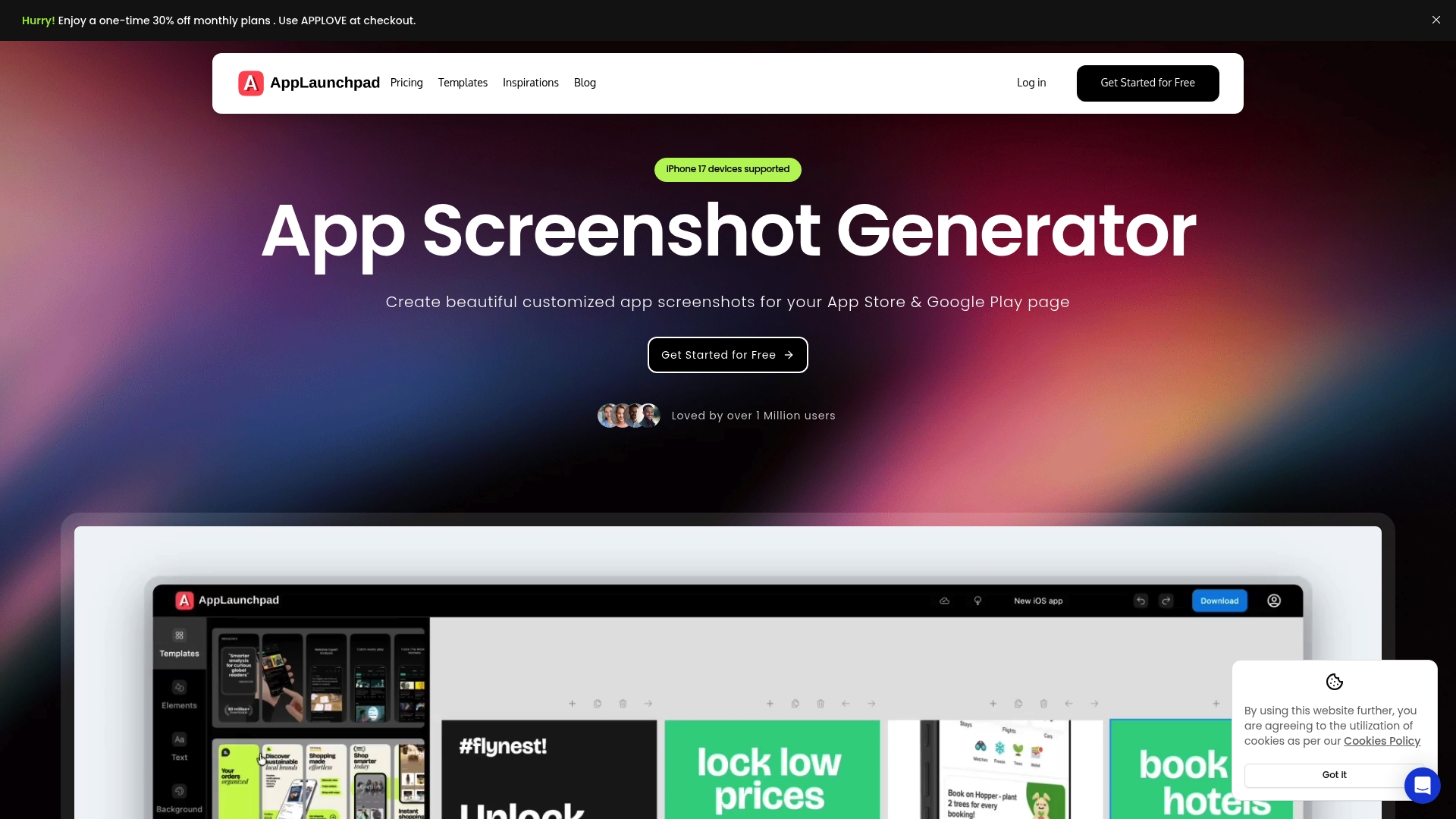
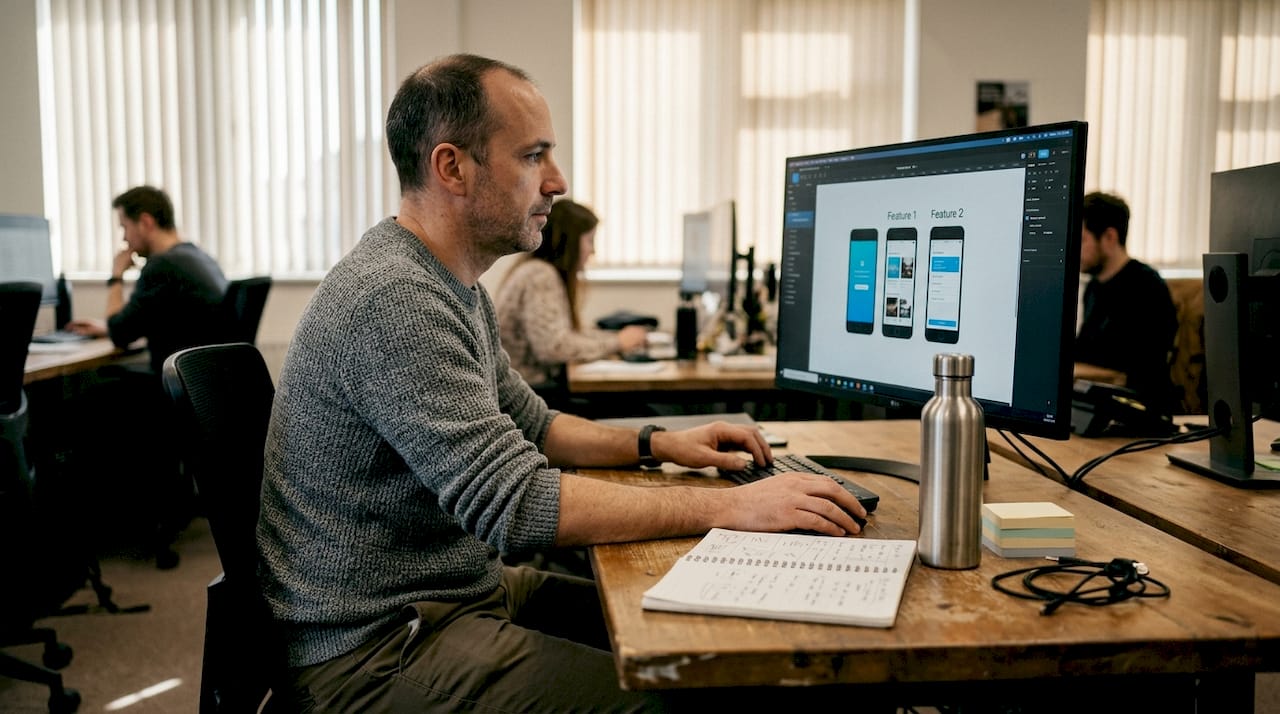
Shipping a new app update should feel exciting. Instead, for many indie developers and small teams, it means another round of tedious screenshot exports across six device sizes, three locales, and two stores. Tools like AppScreens and FrameHero can generate screenshots in minutes across devices and locales, yet most teams still spend entire afternoons in Figma doing it manually. This guide breaks down what fast screenshot generation actually means, which methods work best for different team sizes, how much time you can realistically save, and the pitfalls that catch even experienced developers off guard.
Table of Contents
- Defining fast screenshot generation
- Core methods: Templates, automation, and direct store integration
- Time savings and productivity benchmarks
- Nuances, edge cases, and pitfalls to avoid
- Why most developers underutilize fast screenshot generation tools
- Take your app screenshots to the next level
- Frequently asked questions
Key Takeaways
| Point | Details |
|---|---|
| Automate app screenshots | Use modern tools to create store-ready screenshots in minutes instead of hours. |
| Choose the right method | Template tools suit small teams; automation works best for large-scale multi-locale projects. |
| Check for device-specific issues | Always review your generated images for text cutoffs, scaling, and compliance with store guidelines. |
| Boost downloads fast | Optimizing screenshots through these tools can drive 20–40% more conversions in app stores. |
Defining fast screenshot generation
Fast screenshot generation refers to tools and automated processes that enable mobile app developers to quickly create professional, store-compliant screenshots without manually exporting and resizing every asset by hand. It is not just about speed for its own sake. It is about removing the repetitive, low-value work that blocks your release pipeline.
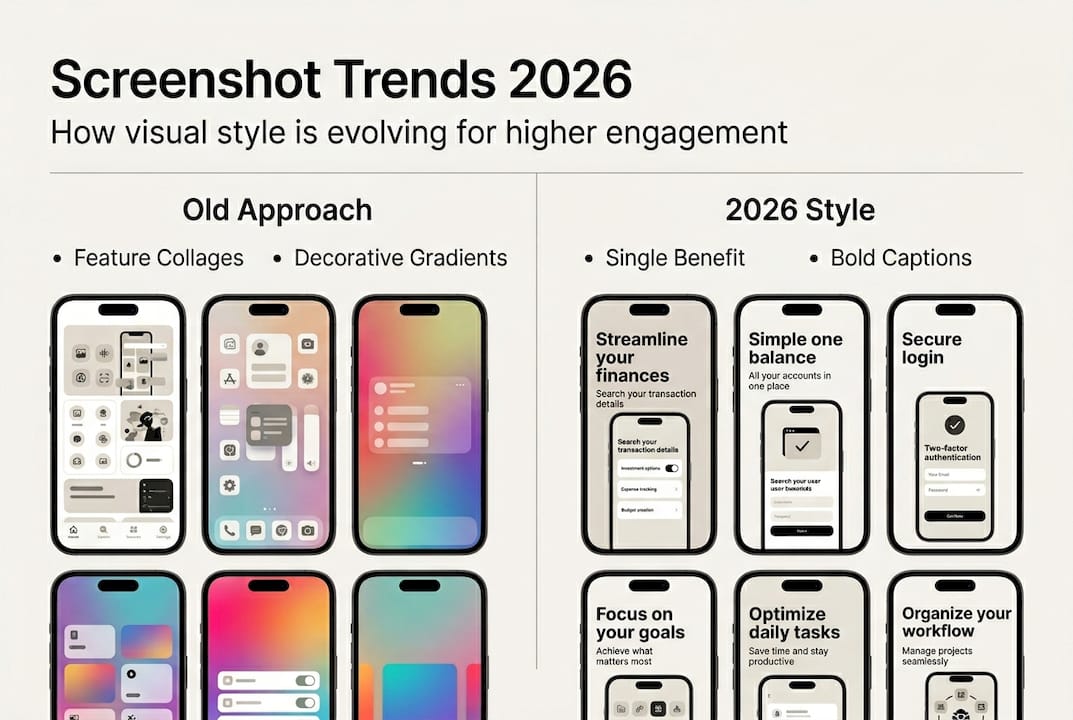
Why does this matter so much right now? App stores have become brutally competitive. Your screenshots are often the first thing a potential user sees before reading a single word of your description. Staying on top of app visual trends is no longer optional if you want your listing to convert.
Here is what makes the problem so persistent for small teams:
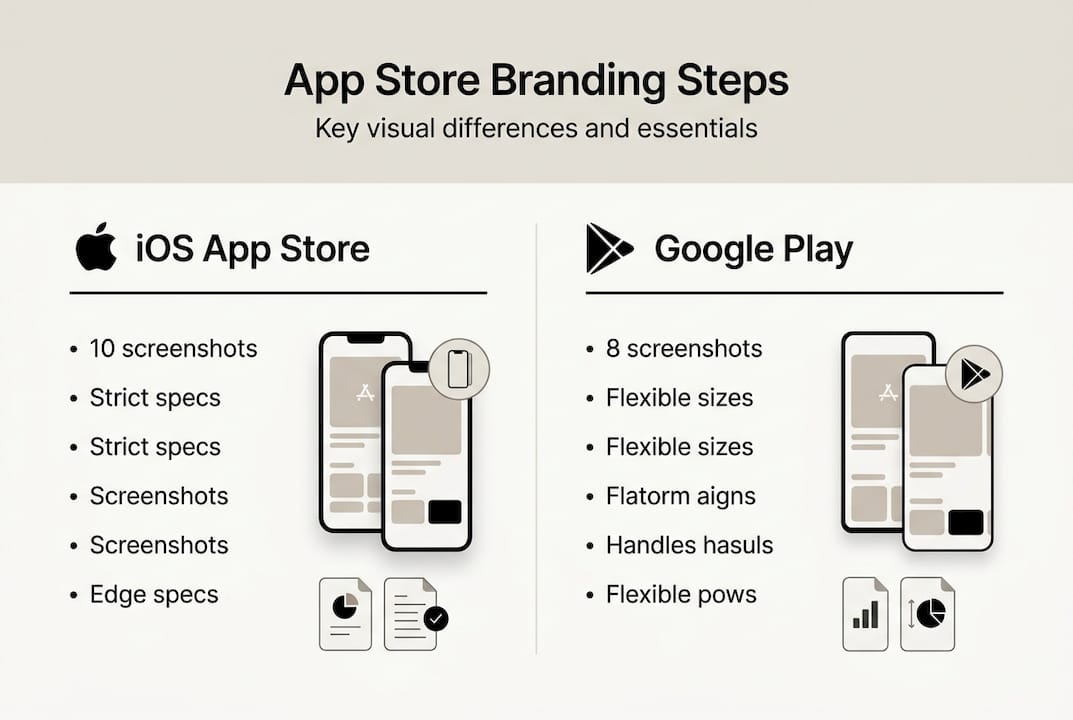
- Multi-device complexity: Apple alone requires screenshots for iPhone 6.9", 6.5", 5.5", and iPad Pro sizes. That is four exports minimum, per language.
- Localization pressure: Supporting five languages means 20 or more unique screenshot sets.
- Frequent update cycles: Shipping weekly or biweekly means this pain repeats constantly.
- Store compliance rules: Wrong dimensions or missing required sizes trigger rejection, costing you days.
According to generator time benchmarks, teams using modern screenshot tools save 10 or more hours per project compared to manual Figma workflows. That is not a small efficiency gain. Over a year of monthly releases, it adds up to weeks of developer time recovered.
“Optimized screenshots can boost app store conversion rates by 20 to 40 percent, making screenshot quality one of the highest-leverage improvements a small team can make.”
Fast screenshot generation closes the gap between the quality of your app and the quality of your store listing. It lets you iterate on visuals as quickly as you iterate on features, which is exactly the pace modern app distribution demands.
Core methods: Templates, automation, and direct store integration
Now that you understand the definition and value, let’s explore the specific methods that drive fast screenshot generation. The three primary methodologies are template editors, simulator and UI test automation, and native Mac apps with direct store integration. Each has a distinct sweet spot.
| Method | Speed | Best for | Limitations |
|---|---|---|---|
| Template editors | Very fast (minutes) | Non-designers, small teams | Less flexible for dynamic content |
| Automation (Fastlane) | Fast at scale | Large teams, CI/CD pipelines | Requires scripting knowledge |
| Native Mac apps | Fast with direct upload | Mac-only developers | Platform-dependent |
Here is how each method works in practice:
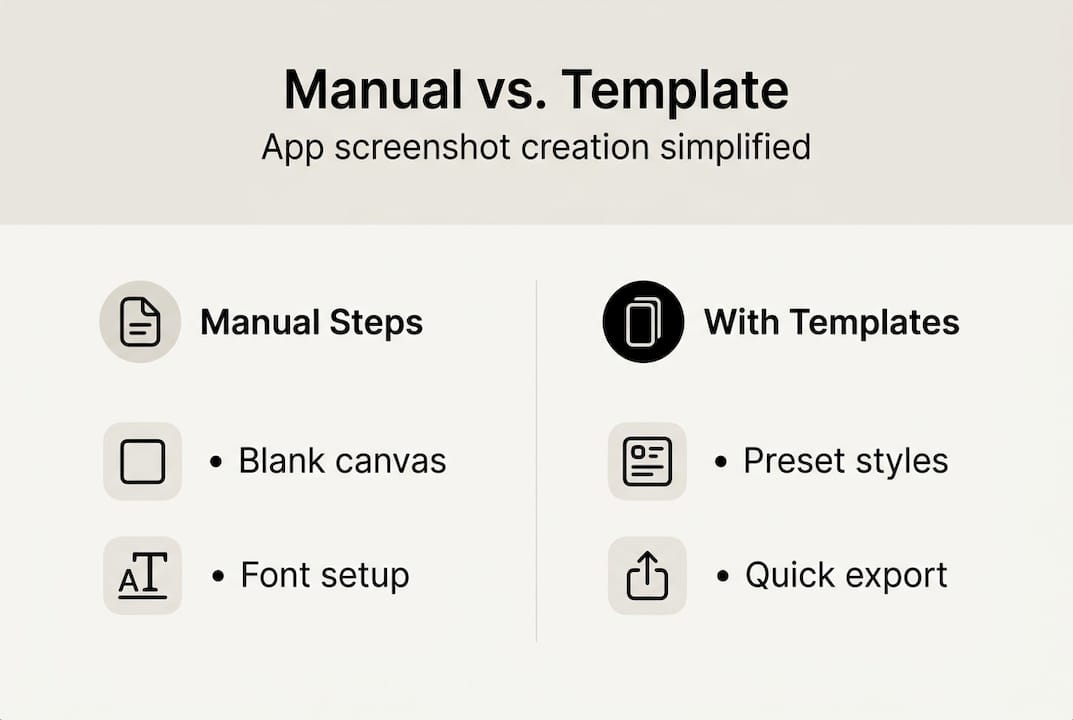
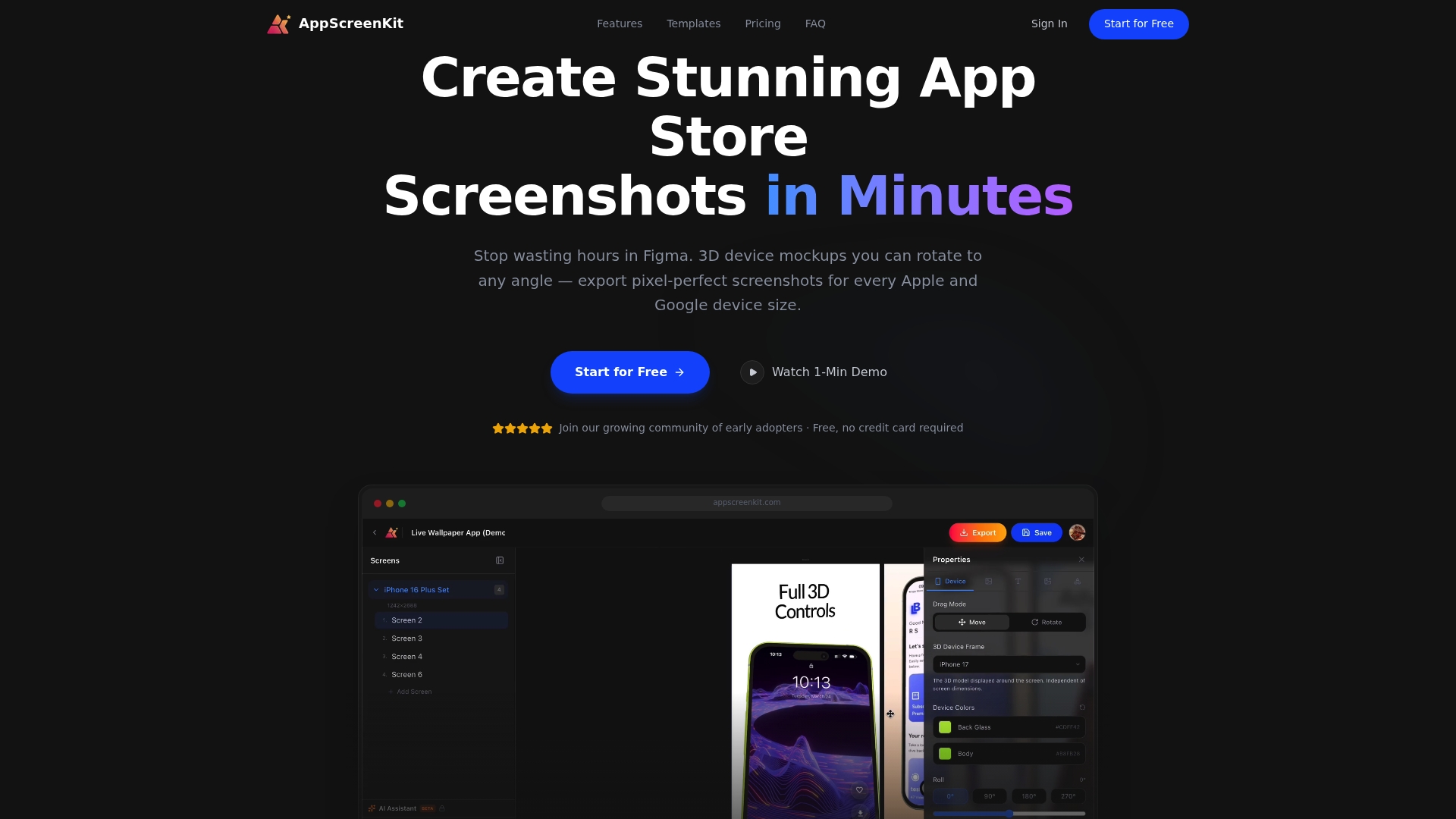
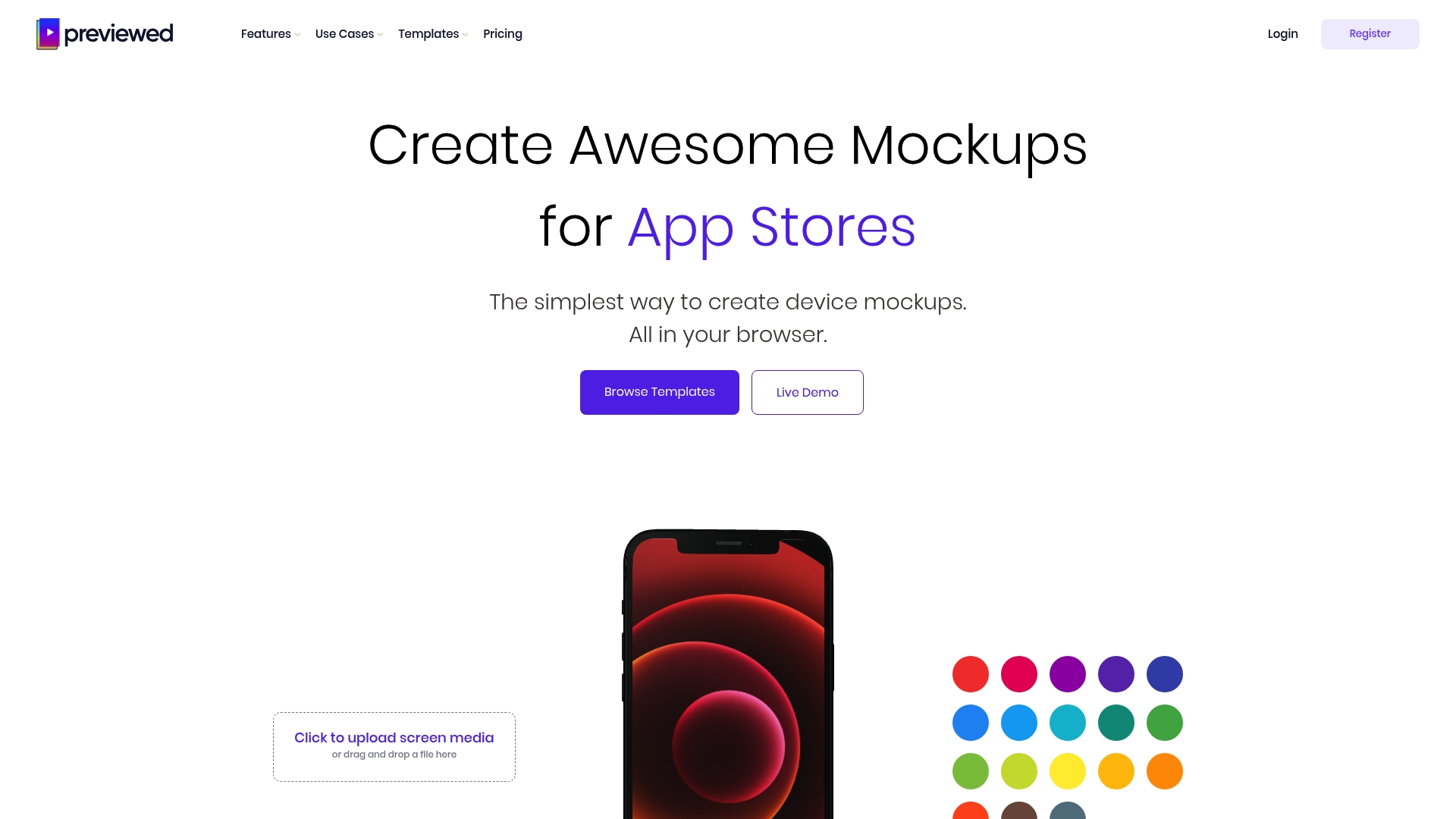
- Template editors: You pick a pre-made layout from a library of screenshot template tools, upload your app images, swap in your text, and export all device sizes in one click. No design skills required. Tools like AppScreenKit fall into this category and are ideal for teams that need professional results without a dedicated designer.
- Fastlane automation: Fastlane for iOS uses UI tests to drive your simulator through key app screens and capture them automatically. It integrates with CI/CD pipelines, handles localization at scale, and can generate hundreds of screenshots in a single command. The trade-off is setup time and scripting knowledge.
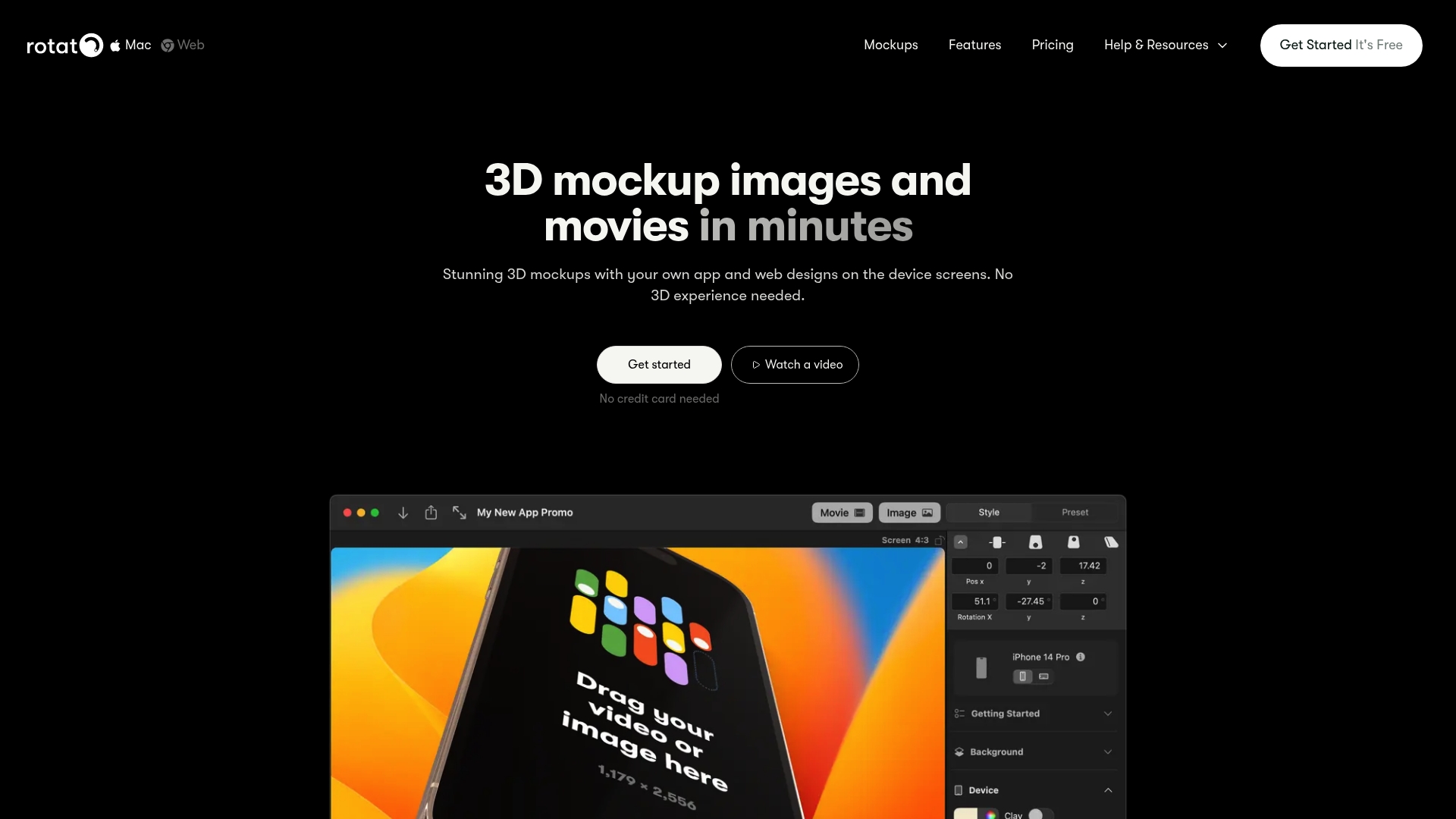
- Native Mac apps: These tools connect directly to App Store Connect, handle uploads automatically, and some include AI-powered localization. They are streamlined for solo Mac developers who want the fastest possible path from screenshot to live listing.
If you are evaluating drag-and-drop alternatives to complex design tools, template editors are almost always the right starting point for teams of one to five people.
Pro Tip: Match your method to your release frequency. If you ship once a quarter, a template editor is plenty. If you ship weekly across ten locales, invest the setup time in Fastlane or a hybrid approach.
Time savings and productivity benchmarks
Understanding the methods is helpful, but seeing the real productivity gains can show why these tools are game changers.
| Workflow | Time to complete | Steps involved | Output quality |
|---|---|---|---|
| Manual Figma | 6 to 10 hours | Design, export, resize, repeat per locale | High but slow |
| AppScreens (template) | Under 10 minutes | Upload, customize, export all sizes | Professional |
| Fastlane (automation) | 20 to 40 minutes (after setup) | Run one command | Accurate but plain |
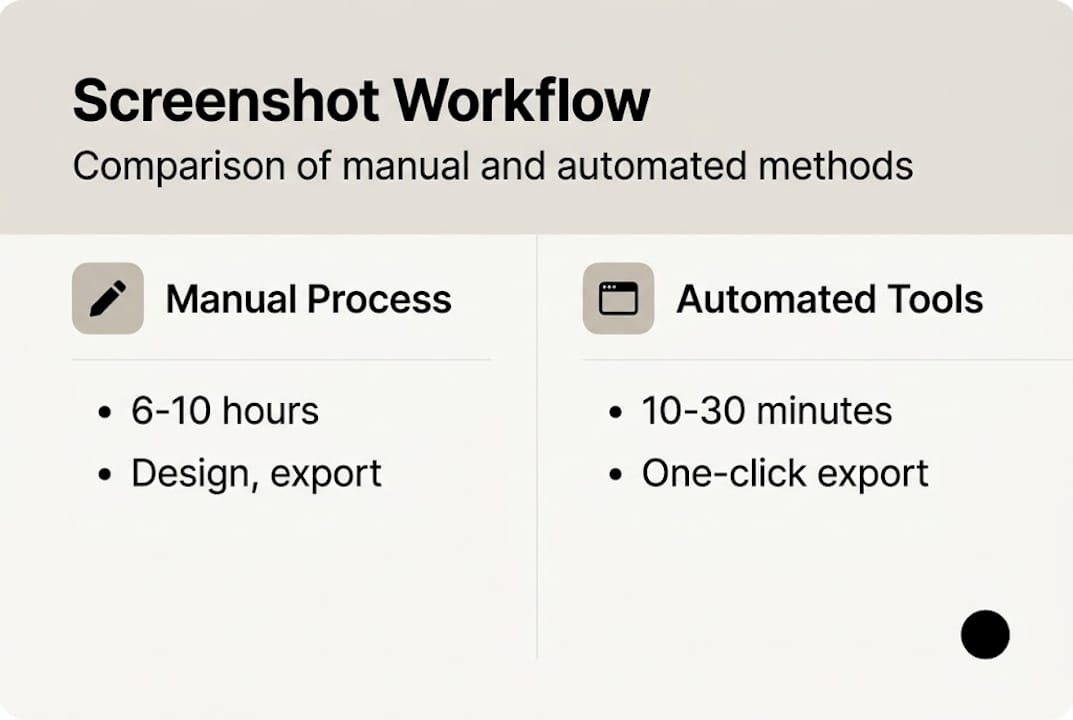
Manual Figma workflows take 6 to 10 hours per project, while modern tools save 10 or more hours per release. For a team shipping biweekly updates, that is 20 or more hours recovered every month.
Here is what that time savings looks like in practice:
- Batch creation: Generate all device sizes simultaneously instead of one at a time.
- Cross-device scaling: Automatic resizing eliminates manual pixel-pushing for each screen dimension.
- Localization automation: Swap text layers for each language without rebuilding the entire layout.
- Consistent branding: Templates enforce visual consistency across every screenshot set.
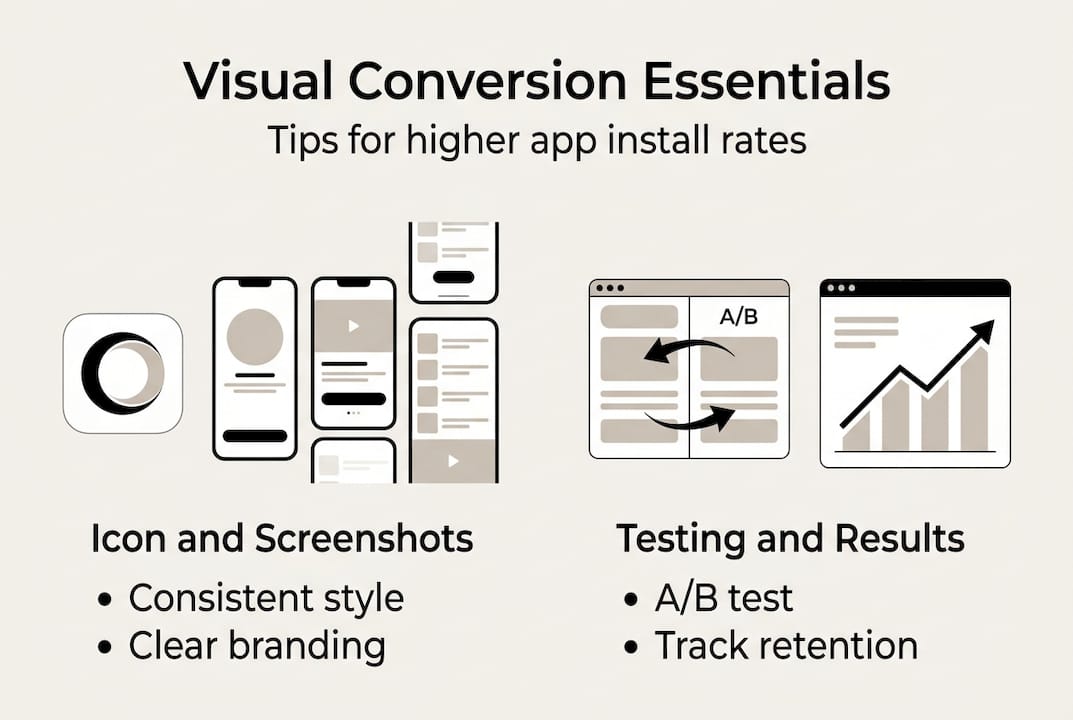
A/B tests consistently show that optimized store visuals can drive a 30 percent boost in downloads compared to unoptimized listings. That means faster screenshot iteration is not just a time win. It is a revenue lever.
For teams following solid store listing best practices, adopting an efficient image launch workflow means you can test new screenshot concepts in hours instead of days, letting you find your best-converting visuals much faster.
Nuances, edge cases, and pitfalls to avoid
To fully leverage fast screenshot generation, it is critical to understand the challenges that trip up even experienced developers.
The most common issues teams run into include:
- iPad vs. iPhone rendering differences: Text that looks perfect on a 6.9" iPhone can overflow or look tiny on a 12.9" iPad Pro.
- Text safe zones: Store guidelines define minimum margins. Automation tools do not always enforce these automatically.
- Simulator rate limits: Running too many Fastlane captures in parallel can trigger API throttling, breaking your pipeline mid-run.
- Dynamic content problems: If your app shows loading spinners or requires a network call, your simulator screenshots may capture empty or broken states.
- Localization mismatches: A translated string that is 30 percent longer than the English original will overflow your text box silently.
Device rendering differences, text safe zones, and localization mismatches are the edge cases that catch teams off guard most often, even when the core automation is working perfectly.
“The most overlooked step in any screenshot workflow is reviewing device-specific output before uploading. One bad iPad screenshot can tank your entire submission review.”
For teams investing in better app preview images, the fix is building a lightweight review step into your process. Export first, check every device size manually, then upload. It adds five minutes but prevents hours of resubmission delays.
Also watch out for AppScreens nuances around test data. Always use a clean, seeded app state when capturing screenshots so your visuals show real, polished content rather than placeholder text or half-loaded UI.
Pro Tip: Create a simple checklist with every required device size and locale. After each export run, tick off each combination before uploading. This takes under ten minutes and eliminates the most common rejection causes.
Why most developers underutilize fast screenshot generation tools
Having explored challenges and pitfalls, it is worth stepping back to see why some teams still overlook these tools entirely.
The honest answer is not laziness. It is a combination of three misconceptions: that quality tools are expensive, that automation has a steep learning curve, and that automated screenshots look generic. All three are outdated beliefs.
For small teams, a well-chosen template editor delivers 90 percent of the value of a full Fastlane setup with 10 percent of the setup time. The developers who resist change and stick with Figma are often the same ones who complain about missed visual marketing wins when competitors outrank them in search.
The teams that move fastest treat screenshot creation the same way they treat code: automate what repeats, review what matters, and ship without hesitation. You do not need a perfect system on day one. Start with one template tool, generate your next release with it, and measure the time saved. That first win is usually enough to change the habit permanently.
Take your app screenshots to the next level
You now have a clear picture of what fast screenshot generation is, which method fits your team, and how to avoid the pitfalls that slow everyone else down. The next step is putting it into practice.
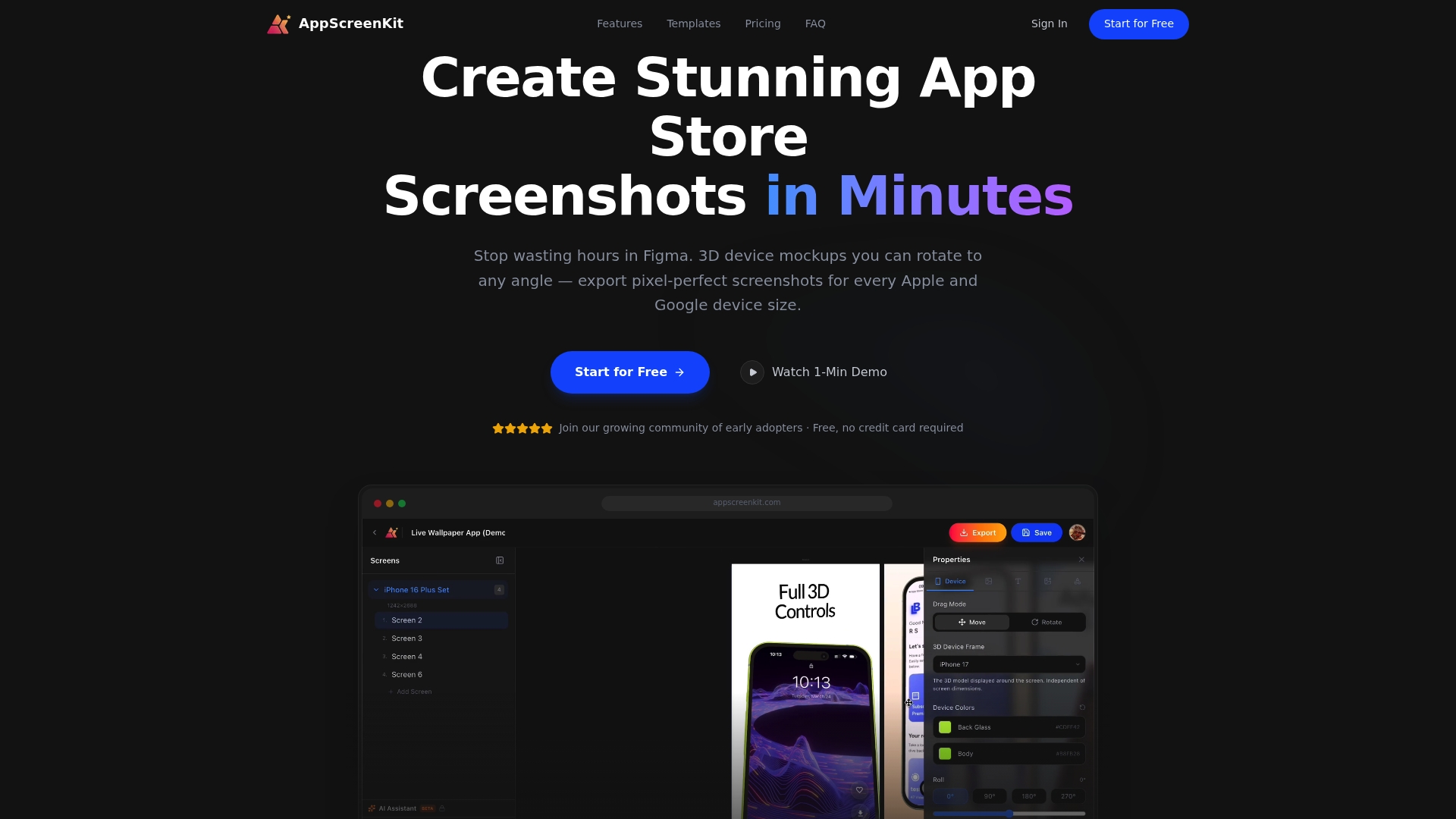
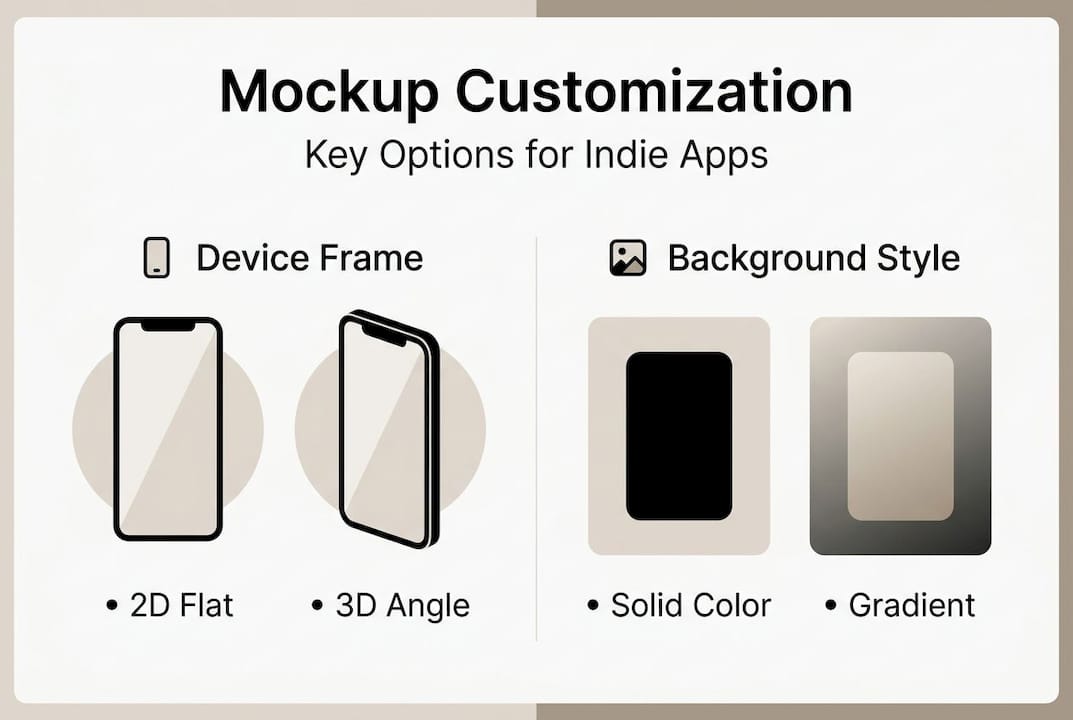
AppScreenKit gives you professional 3D device mockups, customizable templates, and one-click multi-device export so you can go from app image to store-ready screenshots in minutes, not hours. Whether you are starting fresh or replacing a painful Figma workflow, the pre-built templates get you to a polished result fast. For teams ready to build a repeatable process, the image launch workflow guide walks you through every step from first export to live listing.
Frequently asked questions
How much faster is fast screenshot generation compared to doing it manually?
Automated tools cut creation time from 6 to 10 hours down to under 10 to 30 minutes, saving you significant hours every release cycle. For teams shipping frequently, that compounds into weeks of recovered time over a year.
Do I need coding skills to use fast screenshot generation tools?
Template tools require no coding and are designed specifically for small teams and non-designers, while automation options like Fastlane work best with basic scripting knowledge. Most developers start with templates and graduate to automation only when scale demands it.
Will using these tools ensure my screenshots are store-compliant?
Leading tools automate correct sizing and formatting, but device-specific rendering differences mean you should always review each output before uploading to catch text overflow or layout issues specific to certain screen sizes.
Can fast screenshot generation tools help with app localization?
Yes. Multi-device and multi-locale export is one of the strongest advantages of both template editors and automation tools, letting you generate a full localized set in minutes rather than rebuilding layouts for each language manually.