Blog

  • Design Google Play visuals that maximize app conversions

    Design Google Play visuals that maximize app conversions


    TL;DR:

    • Strong visuals on Google Play significantly increase app conversion rates, with testing boosting performance.
    • Adhere to Google’s technical specs for icons, feature graphics, screenshots, and videos to avoid rejections.
    • Consistent, benefit-focused assets that tell a cohesive visual story outperform feature-centric designs.

    Your app could be exceptional, but if your Google Play visuals are weak, most users will never find out. Average U.S. conversion rates on Google Play hover around 27%, and the gap between a high-converting listing and a forgettable one almost always comes down to visuals. This guide walks you through every asset you need: icons, feature graphics, screenshots, and promo videos. You’ll learn the exact specs, design principles, and testing methods that turn browsers into installs, without needing a dedicated design team or expensive software.

    Table of Contents

    Key Takeaways

    Point Details
    Get asset specs right Follow Google Play’s exact specifications for icons, feature graphics, screenshots, and videos to avoid common rejection reasons.
    First impressions win installs Focus on your icon and the first three screenshots, since most potential users decide within seconds.
    Always A/B test visuals Regular A/B testing of icons and screenshots can increase conversion rates by up to 20%.
    Consistency builds trust Keep colors, branding, and messaging consistent across all visual assets for stronger user trust and retention.
    Avoid policy pitfalls Never include rankings, badges, or misleading text—policy violations may lead to app rejection or delisting.

    Google Play visual asset requirements and tools

    Before you open any design tool, you need to know exactly what Google expects. Every asset type has strict technical requirements, and submitting the wrong format or size will get your listing rejected or display incorrectly across devices.

    Here’s a quick overview of the four core visual asset types:

    Asset Size Format Notes
    App icon 512x512px 32-bit PNG No rounded corners applied by you
    Feature graphic 1024x500px JPG or PNG Used in featured placements
    Screenshots Varies by device JPG or PNG Up to 8 per device type
    Promo video 30s to 2 min YouTube link Landscape or portrait

    According to Google’s icon specifications, app icons must be 512x512px PNG, feature graphics 1024x500px, and promo videos between 30 seconds and 2 minutes. Screenshots allow up to 8 per device type, giving you room to tell a full story.

    For tools, small teams don’t need enterprise software. Here’s what works well:

    • Figma for vector-based icon and graphic design
    • AppScreenKit for fast, professional screenshot creation with 3D mockups
    • Canva for quick feature graphic drafts
    • Google Play Console for asset library management and organizing assets across experiments

    The Play Console asset library is underused by most indie developers. It lets you store, reuse, and swap visuals across store listings, event listings, and A/B tests without re-uploading every time. If you’re serious about boosting Google Play downloads, building an organized asset library from day one saves hours later.

    Pro Tip: Upload multiple icon and screenshot variants to your asset library before you launch. That way, when you’re ready to run experiments, you’re not scrambling to create new assets under pressure.

    One more thing worth noting: assets are not one-size-fits-all across device types. Phone, tablet, Chromebook, and Android TV each have their own screenshot dimensions. Plan for this early so you’re not manually resizing everything at the last minute. Good store conversion optimization starts with having the right assets ready for every surface.

    Step-by-step: Designing app icons and feature graphics

    Your icon is the first thing a user sees in search results. Your feature graphic appears when your app is featured or displayed in certain Play Store layouts. Both need to work hard and fast.

    Designing your app icon

    1. Start with a 512x512px canvas in your design tool.
    2. Use a simple, recognizable shape. Avoid text inside the icon if possible.
    3. Pick one or two brand colors. High contrast improves visibility at small sizes.
    4. Test your icon at 48px and 96px to simulate how it looks in search results.
    5. Export as a 32-bit PNG with alpha channel, under 1024KB.

    Google’s icon design specifications are clear: icons must be square, avoid misleading elements, and should not include rankings, badges, or promotional text. Violating these rules triggers rejection, and it happens more often than developers expect.

    Pro Tip: Keep your icon consistent with your in-app branding. Users who install your app after seeing the icon should feel visual continuity immediately. Inconsistency erodes trust fast.

    Designing your feature graphic

    The feature graphic is 1024x500px and often appears without your icon next to it, so it needs to stand alone. Feature graphics should centralize key visual elements and avoid white or dark gray backgrounds, which tend to disappear into the Play Store’s UI.

    1. Place your primary visual (product image, character, or device mockup) in the center third.
    2. Use vibrant, brand-aligned colors that create contrast.
    3. Keep text to a minimum. A tagline of five words or fewer is ideal.
    4. Avoid badges, star ratings, or pricing callouts. These violate policy.
    5. Export at full resolution with no compression artifacts.

    “Your feature graphic is a billboard, not a brochure. One clear message, one strong visual, nothing else.”

    A common mistake is treating the feature graphic like a screenshot with extra space. It’s not. Think of it as a brand impression, not a product demo. For a full listing optimization checklist that covers both of these assets, it helps to work through each element systematically.

    If you’re building for multiple markets, consider using a design localization plugin to adapt text and imagery for different regions without starting from scratch. Localized visuals consistently outperform generic ones in non-English markets.

    Element Icon priority Feature graphic priority
    Brand color High High
    Text Avoid Minimal
    Central focus Shape/symbol Product or character
    Policy risk Badges, rankings Badges, pricing, vulgarity

    For visual marketing strategies that go beyond the basics, thinking about icon and feature graphic as a coordinated pair rather than separate assets is a mindset shift that pays off.

    Step-by-step: Creating high-impact screenshots and promo videos

    Screenshots and promo videos are where you actually sell the experience of using your app. Done right, they answer the user’s core question: “Will this app solve my problem?”

    Screenshot strategy

    The first 3 screenshots are critical because 90% of users don’t scroll past the third one. That means your most compelling value proposition needs to appear in slots one through three, not buried at the end.

    Here’s how to sequence them:

    1. Screenshot 1: Lead with the single biggest benefit, not a feature list.
    2. Screenshot 2: Show the core UI in action with a real use case.
    3. Screenshot 3: Address a common objection or highlight a secondary benefit.
    4. Screenshots 4 to 8: Go deeper for users who are already interested.

    Google’s screenshot guidelines require that screenshots highlight core features with minimal text, be localized where possible, and contain no rankings, badges, or inappropriate content. Keep overlay text short, readable, and in a font size that holds up on small screens.
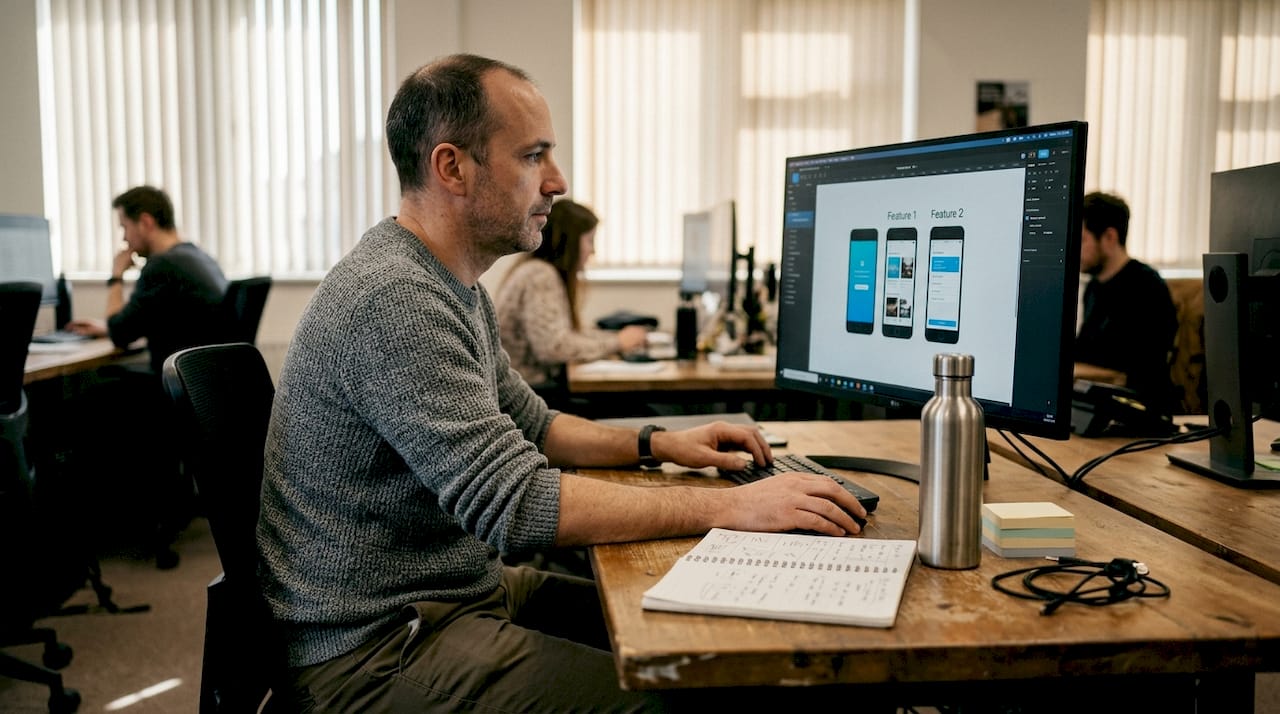
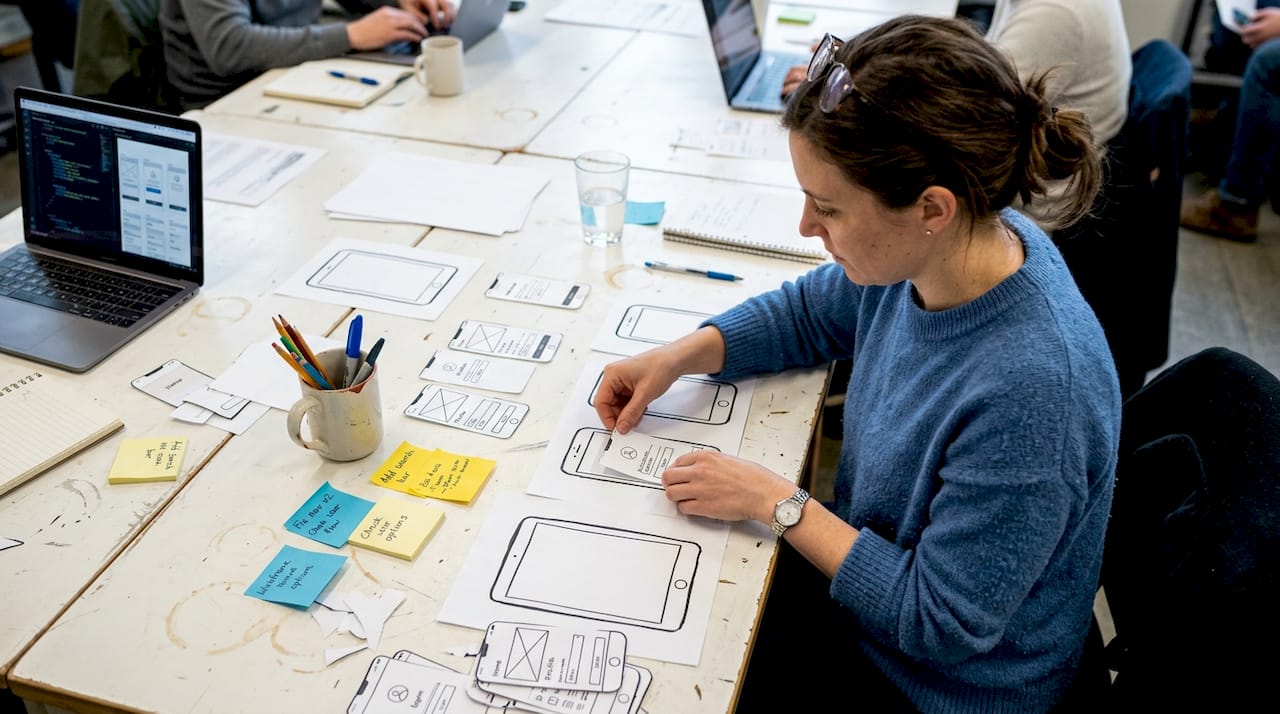
    Man arranging app screenshots workflow

    For an efficient image launch workflow, plan your screenshot narrative before you start designing. Write out the story you want to tell across all 8 slots, then design to match it.

    Pro Tip: Show outcomes, not just screens. “Save 2 hours a week” performs better than “View your schedule” as screenshot copy. Users buy results.

    Promo video guidelines

    Videos must be 30 seconds to 2 minutes and hosted on YouTube. Your hook needs to land in the first 5 seconds or you’ve lost the viewer. Use real app footage, not animated mockups, and add captions because most users watch without sound.

    Avoid these common mistakes:

    • Opening with a logo animation (wastes your 5-second hook window)
    • Showing too many features without connecting them to user outcomes
    • Forgetting captions for silent autoplay
    • Using pricing or promotional claims that may become outdated

    For more on promo video best practices, Google’s own documentation covers format requirements in detail. Pair that with strong mockup customization tips to make your in-video device frames look polished and professional.

    A/B testing and optimizing Google Play visuals for conversion

    Publishing your assets is not the finish line. It’s the starting line. The real gains come from systematic testing and iteration.

    Setting up visual A/B tests in Play Console

    • Navigate to “Store Presence” then “Store Listing Experiments” in Play Console.
    • Choose the asset you want to test: icon, screenshots, or feature graphic.
    • Set your traffic split (typically 50/50 for clean data).
    • Define a hypothesis before you start. Example: “Outcome-focused screenshot copy will outperform feature-focused copy.”
    • Run the test for at least 7 days to account for day-of-week variation.

    A/B tests on icons and screenshots yield conversion lifts between 2% and 20%. That range is wide because the quality of your hypothesis matters as much as the test itself. Vague tests produce vague results.

    “Test one change at a time for true wins. Changing your icon and screenshots simultaneously makes it impossible to know what moved the needle.”

    What to test Why it matters Expected lift range
    Icon color or shape First impression in search 2 to 10%
    Screenshot order Narrative clarity 5 to 15%
    Outcome vs feature copy User relevance 5 to 20%
    Feature graphic style Featured placement CTR 2 to 8%

    After a test concludes, don’t just look at install rate. Check retention at day 1 and day 7. A visual that drives installs but attracts the wrong users will hurt your overall metrics. The asset library management tool in Play Console makes it easy to swap in winning variants without rebuilding your listing.
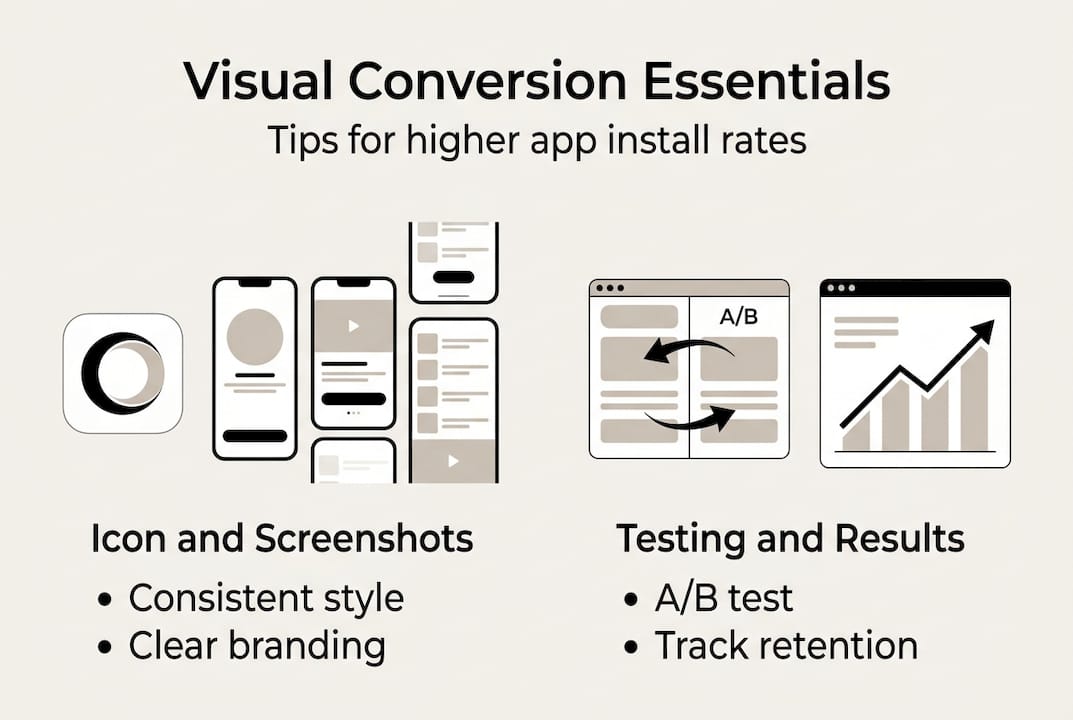
    Infographic summarizing app visual conversion tips

    Pro Tip: Keep a testing log. Document every experiment, hypothesis, result, and what you learned. Patterns emerge over time that you’d never catch by testing in isolation.

    For deeper reading on what moves the needle, preview image conversion tips and visual download strategies are worth bookmarking as ongoing references.

    Our hard-won lessons for high-performing Google Play visuals

    Here’s something most guides won’t tell you: the biggest mistake developers make isn’t technical. It’s conceptual. They design visuals that showcase what their app does instead of what their app achieves for the user. Features are internal. Benefits are external. Users only care about the external.

    Consistency across your icon, screenshots, feature graphic, and video is also more powerful than most developers realize. When all four assets feel like they belong to the same brand, trust builds instantly. When they look like they were made by four different people on four different days, doubt creeps in.

    Policy compliance is not optional and not always obvious. Subtle violations like a faint star rating in a screenshot background or slightly misleading icon imagery can trigger rejection weeks after launch. Build a habit of reviewing the checklist for higher CVR before every update.

    Here’s the contrarian take: early in your app’s lifecycle, your icon and screenshots drive far more impact than your promo video or feature graphic. Most users never see the feature graphic unless your app is featured. Invest your time where users actually look first.

    Level up your Google Play visuals with AppScreenKit

    If applying everything in this guide sounds like a lot of work, it doesn’t have to be. AppScreenKit is built specifically for developers and small teams who want professional-grade Play Store visuals without the design overhead.
    https://appscreenkit.com

    You can create pixel-perfect screenshots with 3D device mockups, add branded text and gradient backgrounds, and export every device size in one click. Start with the store listing checklist to audit what you already have, then use the preview image conversion guide to prioritize what to fix first. When you’re ready to go deeper, the smarter visuals guide covers advanced strategies for sustained download growth. AppScreenKit’s free starter plan lets you get started today with no design skills required.

    Frequently asked questions

    What are the technical requirements for Google Play app icons?

    App icons must be 512x512px PNG, 32-bit with alpha channel, under 1024KB, and square without misleading elements or rounded corners applied by the developer.

    How many screenshots should I use in my Google Play listing?

    You can upload up to 8 per device type, but prioritize the first three since 90% of users never scroll past the third screenshot.

    What makes a good feature graphic for Google Play?

    A strong feature graphic uses vibrant colors, centers the main visual element, and keeps text minimal. Avoid badges and white or dark gray backgrounds that blend into the Play Store UI.

    How should I design promo videos for Google Play?

    Keep videos between 30 and 120 seconds, deliver your hook in the first 5 seconds, use landscape orientation, and always add captions for users watching without sound.

    How can I optimize visuals for higher conversion rates?

    Run A/B tests in Play Console targeting icons and screenshots, test one variable at a time, and use outcome-focused designs. Icon and screenshot tests typically yield conversion lifts between 2% and 20%.
  • App store listing checklist: Optimize visuals for higher CVR

    App store listing checklist: Optimize visuals for higher CVR

    Getting your app noticed in a store with millions of listings is genuinely hard. Most indie developers ship a solid product, write a decent description, and then wonder why downloads stay flat. The truth is, your listing IS your first impression, and users decide in seconds whether to tap “Get” or scroll past. Optimized visuals and precise metadata can be the difference between a 3% and a 15% conversion rate. This checklist walks you through every major element, backed by real benchmarks, so you can stop guessing and start improving.

    Table of Contents

    Key Takeaways

    Point Details
    Accurate metadata matters Proper metadata boosts discoverability and conversion rates, so follow character limits and avoid duplicates.
    Visuals influence CVR Optimized screenshots and videos, especially the first in sequence, can raise conversion rates by up to 42%.
    Localize for global reach Localizing metadata and visuals can increase downloads by 15-40% in target markets.
    Test and iterate Regular A/B testing delivers actionable data for improving your app store listing performance.
    Maintain with audits Ongoing reviews and updates are essential to stay competitive and maximize listing effectiveness.

    Essential metadata requirements for app store listings

    Metadata is the skeleton of your listing. Get it wrong, and no amount of beautiful screenshots will save you. The App Store guidelines are clear: your title is capped at 30 characters on iOS, your subtitle at 30 characters, and your keyword field at 100 characters with no duplicate terms allowed. Your description needs to explain what the app does, highlight its core benefits, and end with a clear call to action.

    Here is what a well-optimized metadata checklist looks like:

    • Title: Include your primary keyword naturally. Keep it under 30 characters. Avoid stuffing multiple terms.
    • Subtitle: Use this space to reinforce a secondary benefit or feature. Do not repeat words from the title.
    • Keyword field: Pack in unique, relevant terms. No commas with spaces, no duplicates, no terms already in your title.
    • Description: Lead with your strongest benefit in the first two lines (visible before the “more” tap). Add a CTA near the end.
    • App category: Choose the most accurate primary category. A wrong category tanks discoverability.

    A common mistake is treating the keyword field like a sentence. It is not. Think of it as a comma-separated list of terms your target users actually search for. Tools like AppFollow or Sensor Tower can surface high-volume, low-competition keywords worth targeting.

    Pro Tip: Localize your metadata for your top three markets from day one. Following localization best practices can dramatically improve discoverability in non-English-speaking markets, where competition is often lower and user intent is high.

    For example, a productivity app targeting Japan should have a Japanese title and keyword field, not just a translated description. Small details like this separate listings that perform from those that stagnate. If you are already using an app screenshot generator to handle visuals, pair that workflow with localized metadata for compounding results.

    Optimize screenshots and video previews for conversion

    Once metadata is set, next comes maximizing impact with visuals. Your screenshots are not just decorations. They are your most powerful conversion tool, and most users never read your description at all.

    The first screenshot carries the most weight. It is visible in search results before a user even taps your listing. If it does not immediately communicate value, you lose them. Use a bold caption, a clean background, and show the app in actual use. Never lead with a login screen or a splash screen.

    Video previews are worth the extra effort. A well-made preview can increase CVR by 15-25% compared to screenshots alone. Keep it under 30 seconds, show real functionality in the first three seconds, and avoid lengthy intro animations.

    Here is a quick checklist for screenshot and video optimization:

    • Show the app in use, not UI chrome or empty states
    • Add short, benefit-focused captions to every screenshot
    • Use consistent brand colors and font styles across all frames
    • Avoid cluttered layouts. One key message per screenshot
    • For video, start with your strongest feature, not a logo animation

    Pro Tip: Do not assume portrait orientation is always better. Some categories, especially games, perform significantly better with landscape screenshots. Check what top-ranked competitors in your category are using before you finalize orientation.

    When thinking about using multimedia assets effectively, the goal is to create a visual narrative. Screenshot one sets the hook, screenshots two and three build on it, and the final frame reinforces trust with social proof or a rating callout. Each frame should feel like a logical next step, not a random feature dump.

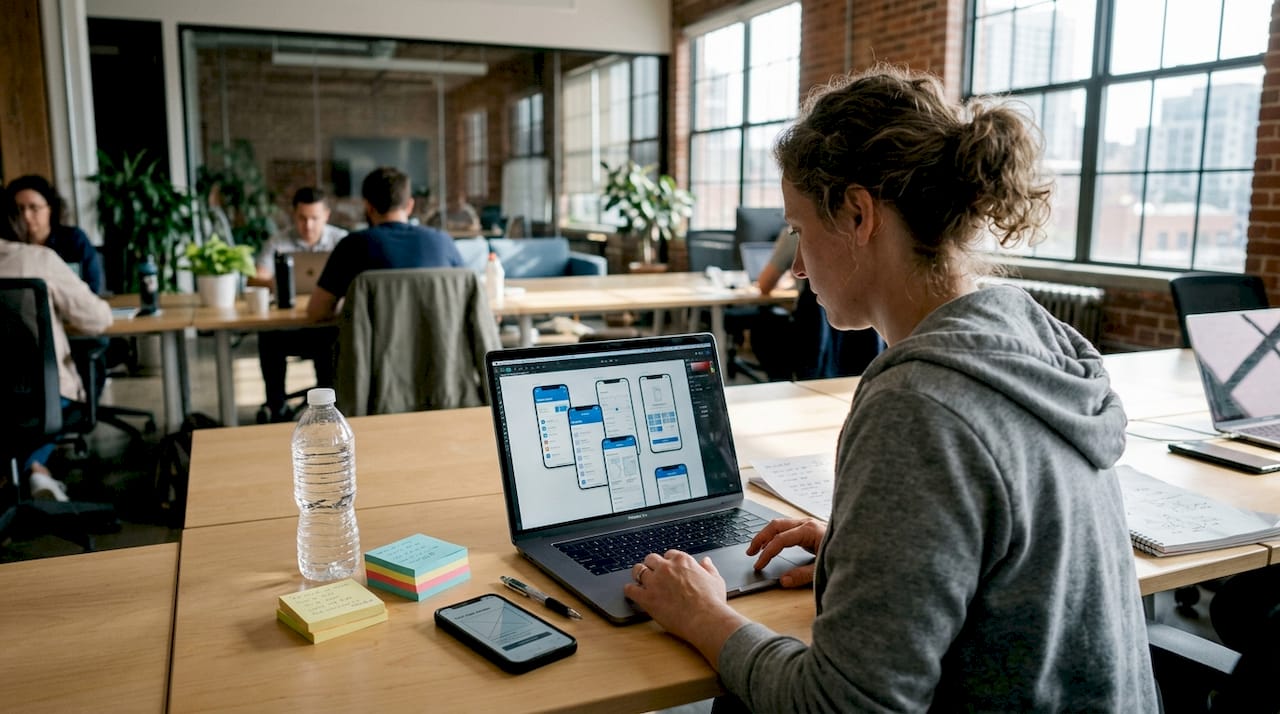
    Designer running A/B screenshot test workspace

    > A/B testing your first screenshot caption and background alone can move conversion rates by double digits. It is the single highest-leverage visual change you can make.

    Run A/B tests and measure performance improvements

    Visual optimization goes hand-in-hand with ongoing testing and improvement. Guessing which screenshot works best is a losing strategy. Testing tells you.

    Both major platforms offer native testing tools. Apple’s Product Page Optimization (PPO) lets you test up to three variants of your screenshots, app preview video, and icon. Google’s Store Listing Experiments covers descriptions too, giving you more variables to work with. According to optimization best practices, you need at least 1,000 impressions per variant and should run tests for 7 to 90 days to get statistically reliable results.

    Here is how to run a structured A/B test:

    1. Identify the single element you want to test (first screenshot, icon, or caption copy)
    2. Create two or three variants with one clear difference between them
    3. Set up the test in App Store Connect or Google Play Console
    4. Let it run until you hit 1,000 impressions per variant
    5. Declare a winner only when the confidence level is above 90%
    6. Implement the winner, then start the next test
    Test element Typical CVR impact Test duration
    First screenshot High (up to 20%) 14-30 days
    App icon Medium (5-15%) 14-30 days
    Video preview High (15-25%) 21-45 days
    Description copy Low to medium (3-10%) 30-60 days
    Screenshot order Medium (5-12%) 14-21 days

    One thing developers often overlook: test one element at a time. Testing multiple changes simultaneously makes it impossible to know what actually drove the result. Patience here pays off. Reviewing the Apple App Review Guidelines before launching tests also helps you avoid asset rejections that waste your testing window.

    Using A/B testing tools that let you quickly generate new screenshot variants makes this cycle much faster. The less time you spend on asset production, the more cycles you can run.

    Localize your listing for top markets

    Optimizing visuals has maximum impact when tailored for different user segments and markets. A screenshot with English captions shown to a user in Brazil or South Korea is a missed opportunity, plain and simple.

    Localizing metadata and screenshots for top markets can yield a 15-40% CVR boost depending on the market and category. That is not a marginal gain. That is the kind of lift that changes your app’s revenue trajectory.

    Priority markets to consider for localization:

    • Japan: High spending per user, strong preference for native-language listings
    • Germany: Privacy-conscious users who respond well to clear, benefit-focused copy
    • Brazil: Large and fast-growing market with low English proficiency
    • South Korea: Competitive but high-value, especially for games and productivity apps
    • France: Strong App Store presence with users who heavily favor French-language content

    The process does not have to be expensive. Start with metadata localization, which is text-only and fast to produce. Then layer in localized screenshots for your top two or three markets. Use native speakers for translation, not just machine translation. Subtle phrasing errors can undermine trust.

    Pro Tip: Localize your screenshots visually too, not just the captions. If your app shows a calendar with American date formats, swap it for the local format. Small details like this signal to users that the app was built for them, not just translated.

    “Apps that localize both metadata and screenshots consistently outperform English-only listings in non-English-speaking markets, often by a significant margin.”

    Common pitfalls include using the same screenshot layout for every market (text length varies dramatically by language) and ignoring right-to-left languages like Arabic or Hebrew. Review keys to localization before starting your workflow to avoid these traps.

    Market Avg. CVR without localization Avg. CVR with localization
    Japan 4-6% 7-10%
    Germany 5-7% 8-12%
    Brazil 3-5% 6-9%
    France 5-8% 9-13%

    Our take: What most developers miss when optimizing app store listings

    Here is the uncomfortable truth: most indie developers treat listing optimization as a one-time task. They set it up at launch, maybe update screenshots when a major feature ships, and then leave it alone for a year. That is exactly why their conversion rates stagnate.

    The conversion rate benchmarks tell a revealing story. Navigation apps average 115% CVR (meaning nearly every visitor installs), while games sit at 3-5%. A 12% CVR is genuinely strong for many categories. But these numbers shift constantly based on seasonality, competitor activity, and platform algorithm changes.

    What separates top-performing listings is not just better screenshots. It is a habit of regular audits. Quarterly reviews of your keyword rankings, monthly checks on competitor visuals, and seasonal screenshot updates for holidays or back-to-school periods compound over time. The developers who treat their listing as a living product, not a static page, consistently outperform those who do not.

    We also see developers over-index on data and under-invest in creativity. A test might tell you that caption A beats caption B, but it cannot tell you that an entirely different creative direction would beat both by 40%. Follow the data, but do not let it kill your instincts. Explore app store listing best practices regularly to stay current.

    Streamline your app store listing with AppScreenKit

    If you’d like to put these checklist items into practice with less effort, here is a simple next step.

    https://appscreenkit.com

    AppScreenKit is built specifically for indie developers and small teams who need professional, conversion-ready screenshots without a design background or expensive tools. You can upload your app images, drop them into 3D device mockups, add captions and gradient backgrounds, and export pixel-perfect assets for every required device size in minutes. The platform supports fast iteration, so running multiple A/B test variants does not become a production bottleneck. Whether you are creating localized screenshot sets for Japan and Germany or testing a new first-frame concept, AppScreenKit makes the asset side fast and painless. Start for free and create your first set today.

    Frequently asked questions

    How often should app store visuals be updated?

    Update screenshots and visuals at least 2-4 times per year, with games benefiting from updates up to eight times annually to stay competitive and reflect seasonal trends.

    What is the ideal sample size for A/B testing app store assets?

    Aim for at least 1,000 impressions per variant and run each test for 7 to 90 days to ensure your results are statistically reliable before declaring a winner.

    How much can localization improve app store conversion rates?

    Localizing both metadata and screenshots for key markets can boost CVR by 15-40%, making it one of the highest-return optimization activities available to indie developers.

    What should the first screenshot convey in an app store listing?

    The first screenshot should instantly show the app’s core value using a clear caption and an engaging background, giving users an immediate reason to keep looking.

  • App mockup customization: boost your indie app’s appeal

    App mockup customization: boost your indie app’s appeal

    Most indie developers ship their apps with generic, default screenshots and assume the product will speak for itself. It rarely does. App store visitors make split-second decisions, and your visuals are doing the heavy lifting before a single word of your description gets read. Custom app mockups are not a luxury reserved for big studios with design teams. They are a practical, high-leverage move that directly affects how many people download your app. This guide breaks down exactly what mockup customization involves, which tools work best for lean teams, and how to use visuals to compete at a higher level.

    Table of Contents

    Key Takeaways

    Point Details
    Mockup customization defined Custom app mockups are tailored images that can dramatically improve app store appeal.
    Top tools compared Specialized mockup generators save indie teams time and offer user-friendly templates.
    Customization options matter Small changes in layout, framing, and color can boost perceived quality and conversion.
    Performance gains Custom visuals have a proven impact on app store conversion rates and downloads.

    What is app mockup customization?

    App mockup customization is the process of creating tailored visual representations of your app specifically designed for app store listings, marketing pages, or pitch presentations. Rather than exporting raw screenshots and uploading them as-is, you wrap your UI inside device frames, add context, layer in branded colors, and compose a visual story that communicates your app’s value instantly.

    The goal is not just aesthetics. It is about signal. When a potential user sees a polished, intentional screenshot, they infer that the app itself is polished and intentional. That inference drives downloads.

    For indie developers, this matters even more. You do not have a brand name doing the work for you. Your visuals are your first impression, your pitch, and your proof of quality all at once. As customizing app mockups helps indie developers stand out beyond default screenshots, the difference between a generic upload and a crafted mockup can be the difference between getting noticed and getting scrolled past.

    Here is what app mockup customization typically covers:

    • Device framing: Placing your UI inside realistic phone or tablet frames to give context
    • Background design: Using gradients, solid colors, or lifestyle imagery to set the mood
    • Text overlays: Adding short benefit-driven captions that explain what the screen shows
    • Scene composition: Arranging multiple devices or angles to tell a visual story
    • Color theming: Matching mockup colors to your brand palette for consistency

    “The best mockups do not just show what an app looks like. They show what it feels like to use it.”

    You can explore a wide range of mockup use cases to understand how different industries and app categories approach visual presentation. The variety is broader than most developers expect, and seeing examples across categories can spark ideas for your own listing.

    Using the right screenshot mockup tools makes this process significantly faster. The barrier to creating professional visuals has dropped dramatically in recent years, which means there is less and less excuse for shipping with bare screenshots.

    Choosing the right tool depends on your workflow, your design confidence, and how much time you can realistically spend on store visuals. The good news is that the landscape has expanded well beyond Figma and Photoshop.

    AppMockUp Studio, Mockup by Apprime, and ScreenshotWhale provide easy-to-use templates requiring far less effort than complex tools like Figma or Photoshop. For indie teams that need to move fast, these purpose-built tools are usually the right call.

    Here is a quick comparison of the most common options:

    Tool Best for Learning curve Cost
    AppMockUp Studio Fast template-based mockups Low Free/Paid
    Mockup by Apprime Clean device frames Low Free
    ScreenshotWhale Batch export Low Free/Paid
    Figma Full creative control High Free/Paid
    Photoshop Pixel-level precision High Paid
    Pixelmost AI-driven automation Medium Paid
    AppScreenKit 3D mockups, store-ready export Low Free/Paid

    For rapid prototyping and store submission, the lower-learning-curve tools win almost every time. Figma and Photoshop are powerful, but they are also time sinks if your primary goal is getting polished screenshots out the door quickly.

    AI-powered tools like Pixelmost are worth watching. They automate background removal, device placement, and layout suggestions, which can cut mockup creation time significantly. The tradeoff is less granular control, but for many indie developers, speed matters more than pixel-perfect precision.

    Pro Tip: Start with one template-based tool to get your first set of mockups live quickly. Once your app is generating downloads, invest time in more customized visuals using a tool with deeper controls.

    If you want to generate app mockups without a steep learning curve, look for platforms that handle device sizing and export formats automatically. Manually resizing for every device size is one of the biggest time drains in the submission process. You can also create custom screenshots directly in a browser-based editor without installing anything.

    Key mockup customization options and styles

    Once you have picked a tool, understanding your customization options helps you make intentional design decisions rather than just accepting defaults.

    Device framing is the most fundamental choice. You are selecting which physical device your UI appears inside, and this affects perceived quality and relevance. An iPhone 15 Pro frame signals modernity. An older device frame can undercut that perception, even if your app runs perfectly on both.

    Designer selecting device frames for app mockups

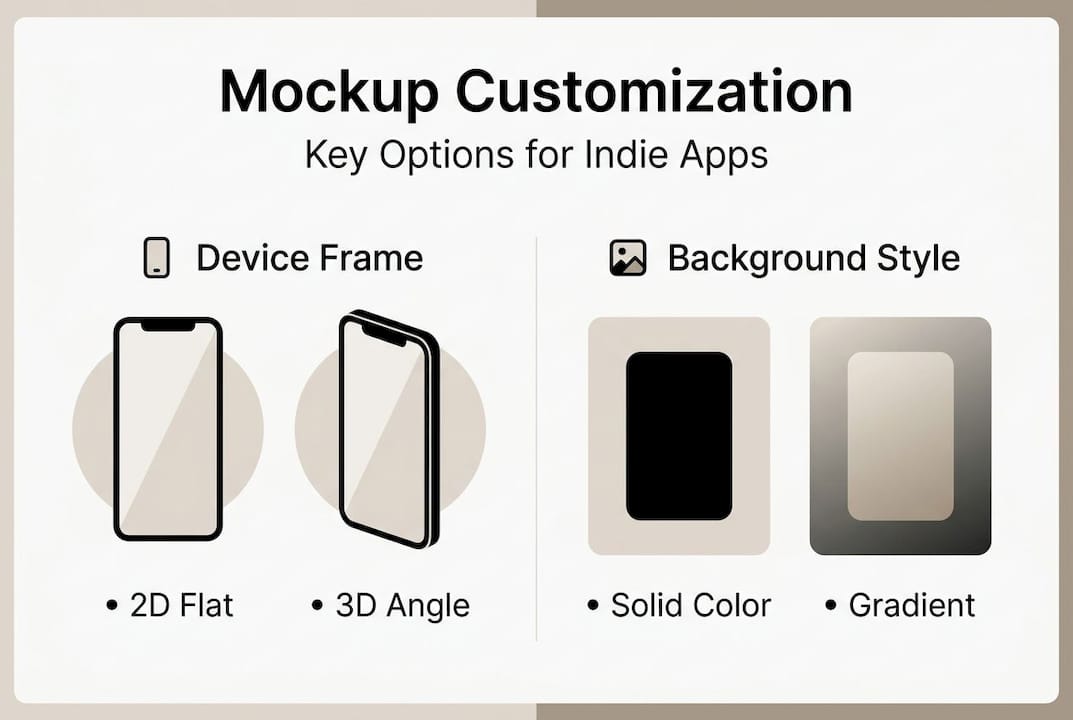
    Background selection has a surprisingly large impact. A flat color background keeps attention on the UI. A gradient adds energy and brand personality. A lifestyle photo behind the device adds aspirational context but can get cluttered fast.

    Here is how the three main mockup styles compare:

    Style Visual feel Best use case Risk
    2D flat Clean, minimal Utility apps, productivity Can feel generic
    3D rotated Dynamic, modern Games, lifestyle apps Can distract from UI
    Frameless Pure UI focus Design-forward apps Needs strong UI

    Some developers prefer frameless UI for a cleaner look, while others use 3D mockups for realism and depth. Neither is universally better. The right choice depends on your app’s category, your target user, and what your competitors are doing.

    Key customization elements worth prioritizing:

    • Text overlays with short, benefit-focused copy (under 6 words per caption)
    • Consistent color palette across all screenshots for a cohesive listing
    • Logical screen sequence that tells a story from problem to solution
    • Device angle variation to add visual interest across the screenshot set

    3D mockup customization has become much more accessible. Platforms now let you rotate devices in true 3D space without needing a 3D modeling background. This used to require Blender or Cinema 4D. Now it takes a drag of a slider.

    Infographic showing device frame and background options

    AI-powered features speed up the process but work best when you have a clear visual direction already in mind. Use AI to execute faster, not to decide for you.

    How custom mockups impact app store performance

    Visuals are not decoration. They are conversion infrastructure. The app store is a visual-first environment, and your screenshots are the primary driver of whether someone taps “Get” or keeps scrolling.

    Enhanced visuals with custom mockups can elevate an indie app’s store presence, helping it compete directly with larger, better-funded apps. The playing field is more level than most developers realize, because a well-crafted mockup from a solo developer can outperform a lazy screenshot set from a major studio.

    Stat: Improving app store screenshots is consistently cited as one of the highest-ROI optimizations available to indie developers, with some teams reporting 20 to 40 percent conversion lifts after a visual refresh.

    AI-driven mockups allow faster iterations, improving both the quality and quantity of A/B tested assets. This matters because A/B testing your screenshots is one of the most direct ways to measure what actually works for your specific audience.

    Here is a simple A/B testing sequence for app visuals:

    1. Create two versions of your first screenshot with different headlines or layouts
    2. Run the test using App Store Connect’s product page optimization feature
    3. Wait for statistical significance (usually 7 to 14 days minimum)
    4. Implement the winner and move to testing the second screenshot
    5. Repeat the cycle every 60 to 90 days as your user base grows

    To boost app conversion, focus your first screenshot on the single clearest benefit your app delivers. Users scan, they do not read. Your first frame needs to communicate value in under two seconds.

    The compounding effect is real. Better visuals bring more downloads. More downloads improve your store ranking. Better ranking brings more organic traffic. The whole cycle starts with a screenshot.

    Why simple customization often beats fancy effects

    After working closely with indie developers across dozens of app categories, one pattern keeps showing up: the cleanest mockups consistently outperform the most elaborate ones.

    It is tempting to add glows, particle effects, layered gradients, and multiple floating devices. It feels like more effort equals more impact. But users processing your listing in two seconds do not reward complexity. They reward clarity.

    A single device, a clear headline, and a background color that contrasts well with your UI will almost always outperform a visually dense composition. The fancy effects pull attention away from the app itself, which is the one thing you actually want people to look at.

    The developers who see the best results from mockup customization are the ones who ask, “What is the one thing I want someone to understand from this screenshot?” and then remove everything that does not answer that question.

    Investing your time in message clarity and visual hierarchy will return more downloads than chasing the latest design trend. Simple is not lazy. Simple is strategic.

    Easily create stunning app mockups with AppScreenKit

    If you are ready to put these principles into practice, AppScreenKit is built exactly for this workflow. It is a web-based platform that lets indie developers create professional, store-ready mockups in minutes without any design background required.

    https://appscreenkit.com

    You get access to professional 3D device mockups you can rotate in true 3D space, gradient backgrounds, text overlays, and one-click export for every required device size. No Figma. No Photoshop. No resizing headaches. The App Store Screenshot Generator handles the technical requirements so you can focus on the creative side. Open the AppScreenKit editor and start building your first mockup set today with the free starter plan.

    Frequently asked questions

    What are the benefits of customizing app mockups for indie developers?

    Custom app mockups enhance your app’s visual appeal and help you stand out in crowded app stores, directly increasing download rates. For indie developers without a recognized brand name, polished visuals are often the single most effective conversion lever available.

    Which tools are easiest for beginners to use for mockup customization?

    AppMockUp Studio and Mockup by Apprime offer intuitive templates that require no design experience, making them ideal starting points for beginners. ScreenshotWhale is also worth trying if you need batch export across multiple device sizes.

    Should I use 3D mockups or frameless UI styles?

    Use 3D mockups for realism or frameless styles for a modern, clean look, and base that decision on your app’s branding and target audience. Games and lifestyle apps tend to benefit from 3D depth, while productivity and utility apps often perform better with frameless, UI-forward designs.

    How do AI tools help speed up the mockup creation process?

    AI-powered tools like Pixelmost automate repetitive tasks like background removal and device placement, cutting creation time significantly. The tradeoff is less manual precision, but for iterating quickly across multiple A/B test variants, the speed advantage is hard to ignore.

  • Boost Google Play downloads 3x with smarter visuals

    Boost Google Play downloads 3x with smarter visuals

    Your app could be losing hundreds of downloads every week, not because of bugs or missing features, but because your Play Store listing visuals are failing to convert. The Google Play average conversion rate benchmark sits at 27.3% in the US, yet well-optimized listings generate up to 3x more organic downloads than average ones. That gap is enormous, and the good news is that indie developers can close it without a big marketing budget. This article breaks down exactly why visuals are the most underrated growth lever on Google Play, what the data says, and what you can do about it starting today.

    Table of Contents

    Key Takeaways

    Point Details
    Visuals triple downloads Updating Play Store visuals can boost downloads up to 3x for indie apps.
    Testing maximizes results Ongoing A/B testing of your listing’s visuals keeps your conversions growing.
    Small teams can win Indie developers can outperform larger competitors with smart optimization.
    Tools simplify the process Using dedicated tools makes Play listing improvements fast and accessible.

    Understanding Google Play optimization: Not just keywords

    Most developers hear “app store optimization” and immediately think about keywords, titles, and descriptions. That instinct is understandable. Keywords are measurable, familiar, and feel like something you can control. But they only get users to your listing. What converts those visitors into downloads is something else entirely.

    Visual assets, specifically your screenshots, feature graphic, and app icon, are the first things a user processes when they land on your Play listing. Before they read a single word of your description, they have already formed an opinion based on what they see. That opinion drives the download decision more than any keyword ever will.

    Here is what many developers miss:

    • Screenshots are the most viewed element on any app listing
    • Icons create the first impression in search results, before the listing is even opened
    • Feature graphics set the emotional tone for your entire brand
    • Consistency across all visual assets builds trust faster than five-star reviews

    “The biggest mistake indie developers make is treating visuals as an afterthought. They spend weeks polishing features and hours on their keyword strategy, but upload screenshots that look like they were taken on a lunch break.”

    The data backs this up. Well-optimized listings generate up to 3x more organic downloads, and the primary driver of that lift is visual quality. If you are serious about enhancing app visibility, the fastest path forward starts with your screenshots, not your metadata.

    Evidence: How visuals drive conversion rates

    Knowing visuals matter is one thing. Seeing the numbers is another. Let’s look at what the research actually shows.

    A/B testing data from Google Play Store listing experiments consistently shows that visual changes produce the largest and fastest conversion lifts. Text changes, like tweaking your short description, tend to produce modest gains. Swapping out screenshots or redesigning your feature graphic can move the needle dramatically.

    Visual element Avg. conversion lift Time to see results
    Screenshots (redesigned) Up to 30% 7 to 14 days
    Feature graphic update 10 to 20% 7 to 14 days
    Icon refresh 5 to 15% 7 to 21 days
    Short description tweak 2 to 8% 14 to 28 days

    The pattern is clear. Visual changes move faster and hit harder than text changes. Up to 3x more organic downloads is not a theoretical ceiling. It is a real outcome that teams have measured through controlled experiments.

    Stat to remember: A single screenshot redesign test can produce a 30% conversion lift in under two weeks. For an app getting 1,000 store visits per month, that is 300 extra downloads with zero ad spend.

    Woman updates app visuals on laptop at table

    Pro Tip: Lead with your most compelling screenshot. Users on mobile rarely scroll past the first two. Make sure your first screenshot communicates the core value of your app in under three seconds.

    For indie teams, screenshot optimization is the highest-ROI activity you can do this week. You do not need a designer. You need a clear message and the right tool to present it visually.

    Visual optimization in action: What actually works

    Data is great, but what should you actually change tomorrow? Here is a practical walkthrough of what to prioritize and what to skip.

    1. Audit your current screenshots. Open your Play listing on a phone, not a desktop. Look at it the way a real user would. Does the first screenshot immediately communicate what your app does and why it matters? If you have to think about it, users will not bother.
    2. Add text overlays to your screenshots. Plain app UI screenshots without context perform significantly worse than screenshots with short, benefit-focused captions. Think “Track habits in 30 seconds” not “Home screen.”
    3. Use device mockups. Screenshots placed inside clean 3D device frames look more professional and trustworthy. They also help users visualize the app in real use.
    4. Prioritize the first two screenshots. On most devices, only the first one or two screenshots are visible without scrolling. These are your highest-value real estate.
    5. Match your visual style to your brand. Consistent colors, fonts, and tone across all screenshots signal that your app is polished and maintained.

    Well-optimized visuals can multiply organic downloads for Google Play apps, and the changes above are the ones that produce the fastest results.

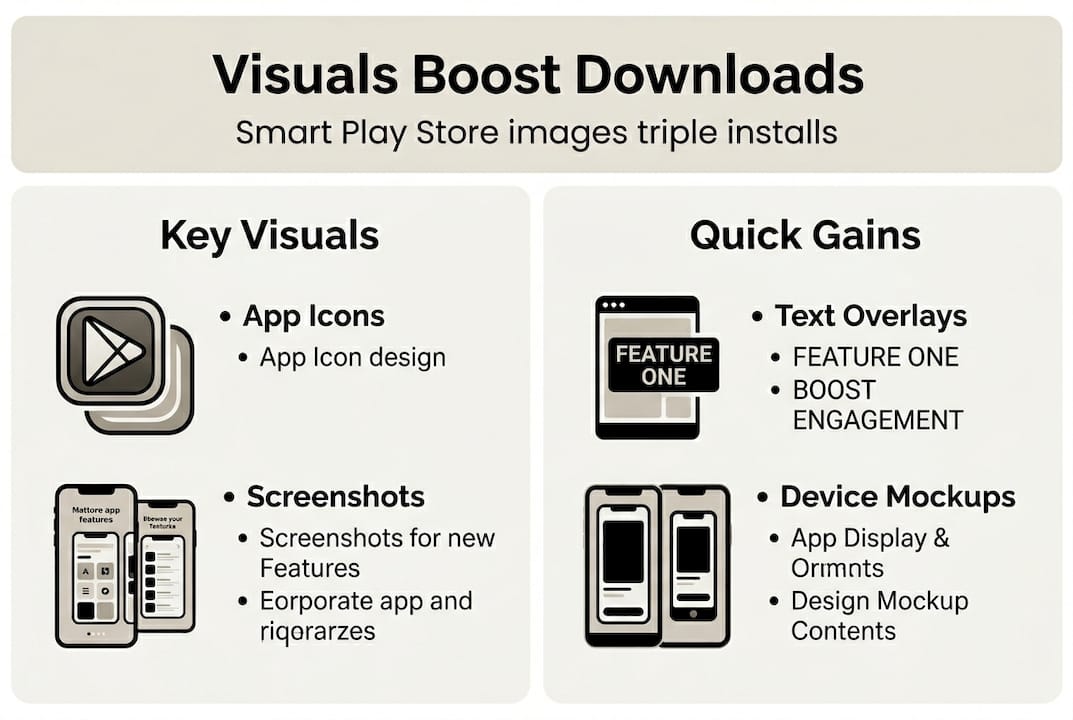
    Infographic on Google Play visual optimization tips

    Pro Tip: Do not try to show every feature. Pick the three most compelling benefits your app delivers and build one screenshot around each. Clarity beats completeness every time.

    For quick wins, start with text overlays and device mockups. These two changes alone can dramatically improve how professional your listing looks. For longer-term gains, focus on increasing app engagement through consistent visual storytelling across your entire listing.

    Sustaining results: Testing and iterating your Play listing

    After your first optimization, staying ahead means continuous learning. A single round of visual improvements is a great start, but the developers who consistently grow their downloads treat their Play listing like a living product, not a one-time setup.

    Google Play’s built-in listing experiments tool lets you run A/B tests on your screenshots, icons, and descriptions. You split your traffic, measure conversion rates, and let data pick the winner. It is free, built into the Play Console, and most developers never use it.

    Testing approach Best for Effort level
    Google Play listing experiments Screenshots, icons, descriptions Low
    External landing page tests Pre-launch validation Medium
    Manual version comparison Small teams without traffic Low
    Third-party ASO tools Advanced segmentation High

    Continuous listing experiments on Google Play can drive repeated download lifts over time. The key is to test one variable at a time so you know exactly what caused the change.

    Here are the top habits for sustained visual performance:

    • Run one experiment at a time. Testing multiple elements simultaneously makes it impossible to know what worked.
    • Wait for statistical significance. Do not call a winner after two days. Let the test run for at least one to two weeks.
    • Document every test. Keep a simple log of what you tested, what won, and by how much. Patterns emerge over time.
    • Refresh visuals seasonally. Updating screenshots around major app updates or seasonal events keeps your listing feeling current.
    • Use visual mockup strategies to speed up iteration. The faster you can produce new screenshot variants, the more tests you can run.

    The developers who win long-term on Google Play are not the ones who optimize once. They are the ones who build a habit of testing.

    Why many developers underestimate visual optimization

    Let’s zoom out and rethink conventional wisdom. Most indie developers are builders at heart. They measure progress in features shipped, bugs fixed, and code quality improved. That mindset is valuable, but it creates a blind spot.

    Users do not see your code. They see your screenshots. And in the three seconds they spend deciding whether to download your app, visuals do more persuasive work than any feature list ever could.

    The uncomfortable truth is that a mediocre app with great visuals will often out-convert a great app with mediocre visuals. That is not a cynical take. It is just how human perception works. Trust is built visually before it is built functionally.

    For resource-constrained indie teams, visual optimization is also the highest-ROI investment available. You do not need to hire a designer or run paid campaigns. A few hours spent on screenshots can produce gains that months of feature development cannot match in terms of download growth.

    The proven methods for indie devs that actually move the needle are not always the most technically impressive ones. Sometimes the biggest growth lever is the one that looks the simplest.

    Next steps: Instantly enhance your Play visuals

    Ready to put these strategies into practice? The gap between knowing what to do and actually doing it comes down to having the right tools and a clear starting point.

    https://appscreenkit.com

    AppScreenKit is built specifically for indie developers and small teams who want professional Play Store visuals without the design overhead. You can upload your app UI, drop it into a 3D device mockup, add benefit-focused text overlays, and export pixel-perfect screenshots for every required device size in minutes. No Figma skills needed. No back-and-forth with a designer. The screenshot generator handles the technical requirements automatically, so you can focus on messaging and conversion. If you are ready to test a new visual direction for your listing, instant visual upgrades are just a few clicks away.

    Frequently asked questions

    What does Google Play optimization include?

    It covers keywords, descriptions, icons, screenshots, ratings, and ongoing A/B testing across all listing elements for best results.

    How much can optimizing visuals improve downloads?

    Well-optimized listings generate up to 3x more organic downloads based on real A/B testing data from Google Play experiments.

    What tools help create effective app visuals?

    Tools like AppScreenKit make building compelling Play Store screenshots and mockups quick and easy, even for solo indie developers with no design background.

    Why not just rely on user reviews for growth?

    While reviews build long-term credibility, visuals impact conversion far before reviews are read, making them the primary driver of first-time download decisions.

  • App visual marketing: strategies that boost downloads

    App visual marketing: strategies that boost downloads

    Standing out in a crowded app store is one of the hardest challenges indie developers face. Your app could be genuinely excellent, but if the visuals on your listing page are weak, most users will scroll right past it. Screenshot optimization increases conversion rates by an average of 18%, and in some cases up to 60%. That kind of lift is not something you get from a minor tweak. This article breaks down every major visual marketing strategy, from icon design to localization, so you can prioritize the moves that deliver the biggest return.

    Table of Contents

    Key Takeaways

    Point Details
    Icon optimization matters Well-designed icons can raise click rates and app rankings significantly.
    Screenshot strategy delivers Compelling screenshots directly boost conversion rates and downloads.
    Localization opens markets Localizing visuals and UI greatly increases conversions in new regions.
    Free tools empower indies Canva, Figma, and AI tools make visual upgrades affordable and efficient.
    Comparison guides priorities Reviewing strategies side-by-side helps target biggest-impact improvements first.

    Start with standout app icons

    Your app icon is the first thing a user sees in search results. Before they read your title, before they look at your screenshots, they see that tiny square. It sets the tone for everything else.

    The most effective icons follow a clear formula. They use a single recognizable visual element, not a collage of features. They rely on high contrast colors that pop against both light and dark backgrounds. And they look distinctly different from competing apps in the same category. According to research on icon design impact, well-optimized icons can increase click-through rates by 8 to 12%, compared to the average 2 to 5%, and improve search rankings by 5 to 15 positions. That is a meaningful edge in a competitive category.

    Here is what separates high-performing icons from forgettable ones:

    • Single focal point: One strong visual element beats a busy design every time.
    • High contrast palette: Bold colors outperform muted or pastel tones in search results.
    • Category differentiation: If every competitor uses blue, try a warm color. Stand out visually.
    • Scalability: Your icon must look sharp at 29×29 pixels and at 1024×1024 pixels.

    Stat callout: Icons optimized for contrast and simplicity improve CTR by 8-12%, directly feeding into better organic rankings.

    Pro Tip: Download the top 10 apps in your category and line up their icons side by side. Look for the dominant color, shape, and style. Then design yours to break the pattern intentionally.

    Screenshot optimization for higher conversions

    With your icon optimized, next comes the most visual part of your listing: your screenshots. This is where users decide whether your app is worth a download. Most developers treat screenshots as an afterthought. That is a costly mistake.

    Team reviewing app screenshots at desk

    The order of your screenshots matters enormously. Your first screenshot should showcase your single most compelling feature or benefit, not a generic welcome screen. Users make decisions in seconds, and screenshot best practices confirm that leading with your strongest value proposition is the highest-impact change you can make.

    Here is a practical process for building a high-converting screenshot set:

    1. Lead with your core benefit. Frame screenshot one around the problem your app solves.
    2. Use short, bold text overlays. Keep captions under six words. Make the benefit obvious at a glance.
    3. Show real UI. Authentic interface screenshots outperform stock imagery or illustrated mockups.
    4. Use device mockups. Placing your UI inside a clean 3D device frame adds professionalism and context.
    5. Maintain visual consistency. Use the same color palette, font, and tone across all screenshots.

    “The apps that convert best treat their screenshot set like a mini ad campaign, not a feature list.”

    Pro Tip: Tools like the AppScreenKit screenshot generator let you drop your UI into professional 3D device mockups and export all required sizes in one click. For indie developers without a design team, that kind of speed is a genuine competitive advantage.

    Strategic localization: Unlock new markets

    Once your screenshots are optimized, next-level app growth comes from targeting new audiences with strategic localization. Most indie developers skip this step entirely, which means the opportunity is wide open.

    Localization is not just translating your app description. It means adapting your screenshots, text overlays, and metadata for specific regions and languages. The results are significant. Localization boosts CVR by 15 to 40% on average, and full UI localization in non-English markets can push that lift to 30 to 50%. Meanwhile, top apps localize for 75 to 96% of their target markets and use Custom Product Pages (CPPs) to achieve an additional 25 to 45% conversion lift.

    For indie developers, you do not need to localize everywhere at once. Prioritize strategically:

    • Japanese and Korean markets respond strongly to polished, detail-rich visuals.
    • German and French markets expect localized text in screenshots, not just the app description.
    • Spanish-speaking markets are large and often underserved by indie apps.
    • Brazilian Portuguese is distinct from European Portuguese and worth treating separately.

    The table below shows how localization depth affects conversion rates by region:

    Region Basic localization (text only) Full visual localization Full UI localization
    Japan +15% CVR +30% CVR +45% CVR
    Germany +12% CVR +25% CVR +38% CVR
    Brazil +18% CVR +32% CVR +50% CVR
    France +10% CVR +22% CVR +35% CVR

    Even basic localization of your screenshot text overlays can unlock meaningful growth in markets where your app currently has zero presence.

    Leverage free tools and AI for rapid iterations

    Localization can feel daunting, but free tools and rapid iteration can make even complex visual changes manageable and consistently rewarding. The good news is that you do not need a big budget to test and improve your visuals continuously.

    Free tools like Canva and Figma, combined with AI tools like ChatGPT for generating copy ideas, give indie developers a fast prototyping workflow at zero cost. The key is not to perfect your visuals once and move on. The key is to treat your app listing as a living asset that you improve every week.

    Here is a practical iteration workflow for small teams:

    • Week 1: Audit your current screenshots against the top three competitors in your category.
    • Week 2: Redesign your first two screenshots using the benefit-first framework.
    • Week 3: Run an A/B test using your app store’s built-in testing tools.
    • Week 4: Track your top 10 keywords weekly and note any ranking shifts.
    • Ongoing: Localize one new market per month, starting with the highest-traffic region.

    Pro Tip: Long-tail keywords (three to five word phrases) are far less competitive than broad terms and often convert better because they attract users with specific intent. Pair keyword tracking with visual updates using the AppScreenKit visual iteration tools to see which changes drive the most measurable lift.

    The compounding effect of consistent iteration beats a single big redesign every time. Small weekly improvements add up to significant ranking and conversion gains over a quarter.

    Visual strategy comparison: Which moves boost your metrics fastest?

    With individual strategies explored, let’s compare their impact side by side so you can prioritize your next move. Not every tactic delivers the same return for the same effort, and as an indie developer, your time is your most limited resource.

    It is worth noting that 65 to 70% of downloads come from organic search, and average conversion rates sit at 28 to 33% on the App Store and 23 to 28% on Google Play. That means visual and ASO improvements directly affect the majority of your potential downloads.

    Strategy Conversion impact Effort level Cost
    Icon optimization CTR +8 to 12% Low Free to low
    Screenshot redesign CVR +18 to 60% Medium Free to low
    Basic localization CVR +15 to 40% Medium Free to low
    Full UI localization CVR +30 to 50% High Low to medium
    Iterative A/B testing Compounding gains Low (ongoing) Free

    Based on this breakdown, here is how to sequence your efforts:

    • Start with screenshots. Highest impact, medium effort, and directly testable.
    • Fix your icon next. Low effort, measurable CTR gains, and a one-time investment.
    • Add basic localization. Pick one high-value market and localize your screenshot text.
    • Build an iteration habit. Weekly tracking and monthly updates compound over time.

    The developers who grow fastest are not the ones who launch perfectly. They are the ones who improve consistently.

    Bring your app visuals to life: Next steps with AppScreenKit

    Now that you know which visual strategies matter most, here is how to take action with a tool built for indie dev agility. Creating professional screenshots used to mean hiring a designer or spending hours in Figma. That is no longer the case.

    https://appscreenkit.com

    AppScreenKit is built specifically for indie developers and small teams who need polished, store-ready visuals without the overhead. You can upload your app UI, place it inside true 3D device mockups that rotate in real space, add branded text and gradient backgrounds, and export pixel-perfect screenshots for every required device size in a single click. No design skills needed. No manual resizing. No rejection headaches. The free starter plan lets you get started immediately, so you can implement everything covered in this article today, not next sprint.

    Frequently asked questions

    How much can app icons really affect downloads?

    Optimized icons can boost click-through rates by 8 to 12%, which leads to improved search rankings and more organic downloads over time.

    Are localized screenshots worth it for indie apps?

    Yes. Localizing screenshots can boost conversion rates by 15 to 40%, making it especially valuable for non-English markets where competition from indie apps is lower.

    What free tools should small teams use for app visuals?

    Canva and Figma are strong starting points for visual design, and AI tools like ChatGPT help generate screenshot copy ideas quickly and at no cost.

    Is screenshot optimization more effective than paid ads?

    For indie developers, ASO and screenshot optimization typically deliver better long-term ROI than paid user acquisition, especially early on, because the gains compound with every iteration.

    Article generated by BabyLoveGrowth

  • App image launch workflow: boost installs by 20-40%

    App image launch workflow: boost installs by 20-40%

    Your app could be brilliant, but if the screenshots look rough or fail spec checks, users scroll past and stores reject your build. Optimized screenshots lift conversion rates by 20-40%, yet most indie teams treat images as an afterthought. This guide walks you through a proven, efficient workflow, from raw UI captures to a polished, compliant screenshot set ready for both the App Store and Google Play. No design degree required, just the right process and tools.

    Table of Contents

    Key Takeaways

    Point Details
    Lead with your value Your first screenshot and caption are critical for conversion—make them count.
    Match platform specs App images must follow the exact size and style rules for each store or risk rejection.
    Test and localize A/B testing variants and localizing images can significantly boost downloads.
    Avoid easy mistakes Incorrect sizes, alpha channels, or unstyled images kill conversion and may block launch.
    Use efficient tools Template-based generators save hours and help indie teams stand out fast.

    What you need before you start

    With the stakes established, let’s walk through what you’ll need to prepare polished, compliant screenshots from the start. Skipping this prep phase is the single biggest reason teams waste hours on rework.

    Essential assets checklist:

    • Raw UI screenshots at the highest resolution your device supports
    • Brand colors, fonts, and logo files
    • Background images or gradient values
    • Benefit-driven caption copy (written before you open any design tool)
    • Device frame assets or access to a template tool

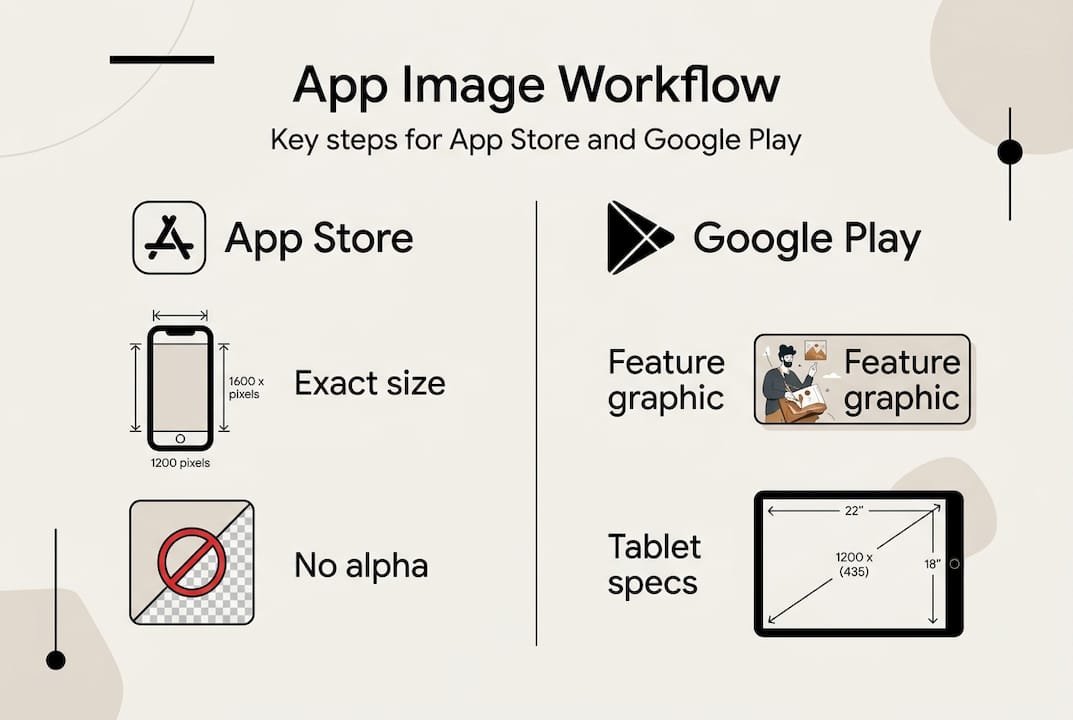
    File format and size matter more than most developers expect. App Store screenshot sizes must match exact specs or face rejection, for example 1290x2796px for iPhone 6.7-inch, PNG or JPEG only, and absolutely no alpha channel. Meanwhile, Google Play requires a feature graphic at 1024x500px, with phone and tablet screenshots submitted separately.

    Here is a quick reference for the most common sizes:

    Platform Device Required size Format
    App Store iPhone 6.7-inch 1290x2796px PNG/JPEG
    App Store iPhone 6.5-inch 1242x2688px PNG/JPEG
    App Store iPad Pro 12.9-inch 2048x2732px PNG/JPEG
    Google Play Phone 1080x1920px (min) PNG/JPEG
    Google Play Feature graphic 1024x500px PNG/JPEG

    For template tools, options like AppScreenKit, AppLaunchpad, and ScreenshotWhale all let you work from pre-built layouts and export to exact specs. Using an App Store screenshot generator cuts setup time dramatically compared to building layouts from scratch in Figma.

    Pro Tip: Always start with the highest resolution image you need and export down. Upscaling a small image introduces blur that reviewers and users will both notice.

    Mismatched dimensions and alpha channels are the top two rejection triggers. Catch them before upload, not after.

    Step-by-step: Creating app images that drive downloads

    Now that you have all assets lined up, here is the workflow to craft images that boost installs and avoid the most common pitfalls.

    1. Capture raw screenshots directly from a real device or high-fidelity simulator at the target resolution.
    2. Pick a template that matches your app’s tone. Minimal and clean works for productivity; bold and colorful works for games.
    3. Write benefit-driven captions before placing them. “Save 2 hours weekly” beats “Task management made easy” every time.
    4. Apply consistent branding across all images: same font, same color palette, same device frame style.
    5. Export at exact specs for every device size you need to cover. One click bulk export saves significant time.
    6. Sequence for impact. Lead with your strongest value prop, then build a visual story across images 2 through 8.

    The first screenshot is seen by 100% of users, and A/B testing it can produce compounding gains over time. That first frame is your headline. Treat it like one.

    Screenshots with clear benefit captions, consistent style, and real UI consistently outperform stylized but vague alternatives. Users want to see what the app actually does, fast.

    “Never use unstyled screenshots. Raw captures leak 20-30% of potential conversions before a user even reads your description.”

    Platform tone differs too. App Store users respond to emotional, story-driven visuals with short captions and darker, premium aesthetics. Google Play users tend to favor utility-focused images with slightly longer captions and lighter backgrounds. Following the app image workflow conventions for each store is worth the extra effort. You can design and export polished screenshots for both platforms from a single session using the right tool.

    Also, use 5-8 images that tell a user story, match exact specs, export as PNG or JPEG, and order them for maximum impact.

    Pro Tip: Before uploading, preview your final images on an actual device screen. Text that looks readable on a desktop monitor can become tiny and unreadable on a 5-inch phone display.

    Platform-specific tips: Apple App Store vs Google Play

    With the general workflow clear, here is how to adjust for platform-specific requirements and leverage each store’s stylistic trends.

    Factor App Store Google Play
    Key phone size 1290x2796px (6.7-inch) 1080x1920px minimum
    Feature graphic Not required 1024x500px required
    Alpha channel Not allowed Not allowed
    Caption style Short, emotional Longer, utility-focused
    Tone Premium, story-driven Practical, benefit-led
    Tablet submission iPad required separately Tablet optional but recommended

    Apple requires exact export to 1290x2796px for iPhone 6.7, no alpha channel; Google requires a 1024x500px feature graphic with phone and tablet handled separately. Getting these wrong is the fastest path to rejection.

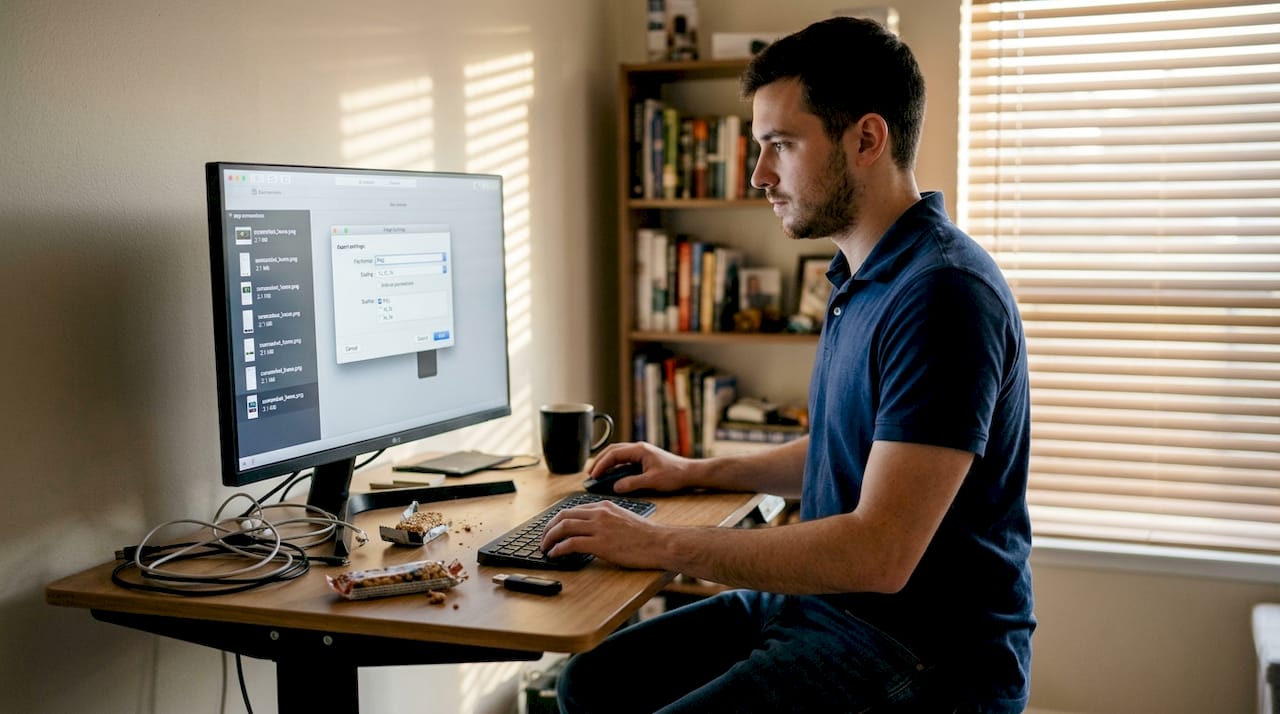
    Developer exporting images on desktop monitor

    Style differences matter just as much as technical specs. The App Store favors emotional story-driven images while Google Play skews more utilitarian. Test framed versus frameless device mockups in your category to see what converts better.

    Key design differences to keep in mind:

    • App Store: darker backgrounds, premium feel, minimal text per image
    • Google Play: lighter palettes, more descriptive captions, feature-forward framing
    • Both: avoid misleading claims, unlocalized UI, or screenshots that don’t reflect the actual app
    • Include a Dark Mode screenshot if your app supports it
    • Localizing captions for key markets can yield 15-40% higher conversion rates

    Check screenshot guidelines detail for iPad and tablet-specific requirements, which differ from phone specs and are easy to overlook. Use AppScreenKit to generate platform-optimized screenshots for both stores without switching tools.

    Infographic comparing App Store and Google Play image workflow

    Testing, localization, and post-launch optimization

    After uploading your images, don’t stop. Here is how to continually improve performance and reach more users with data-driven tweaks and local upgrades.

    CVR lifts 20-40% with optimized screenshots; A/B testing captions and backgrounds yields 10-20% gains; localizing text drives 15-40% higher CVR. These are not marginal improvements. They compound.

    Post-launch optimization process:

    1. Preview all uploaded images in the store listing before going live.
    2. Spot-check for any rejection flags: wrong dimensions, alpha channels, misleading text.
    3. Set a baseline conversion rate from your analytics dashboard.
    4. Run an A/B test using Apple’s Product Page Optimization (PPO) or Google’s Store Listing Experiments.
    5. Change only one variable per test: caption, background color, or image order.
    6. Run each test for 1-4 weeks to reach statistical confidence.
    7. Apply the winner, then test the next variable.

    Apple PPO and Google Listing Experiments support up to 3 visual variants and deliver 90% statistically confident results. Top apps update their screenshots 2-4 times per year based on test results and seasonal trends.

    Pro Tip: Use AppScreenKit to A/B test screenshot variants quickly. Pre-built templates mean you can produce a new variant in minutes, not hours, keeping your test cadence tight.

    For localization, AI-powered screenshot localization tools can automate caption translation and text placement across multiple languages. Prioritize markets where your app already has organic traction before expanding further.

    Common mistakes and troubleshooting

    Mistakes cost time and downloads. Here are the most common pitfalls indie teams hit, and how you can sidestep them before shipping.

    Most common app image mistakes:

    • Wrong file dimensions for the target device size
    • PNG files saved with an alpha (transparency) channel
    • Inconsistent visual style across the screenshot set
    • Text too small to read on a real device screen
    • Captions that make claims not visible in the actual UI
    • Raw, unstyled screenshots with no context or framing
    • Unlocalized UI text in screenshots submitted to non-English markets

    Rejection triggers include wrong sizes, alpha channels, misleading claims, unlocalized UI, and raw unstyled screenshots. Every item on that list is preventable with a quick pre-upload checklist.

    Before you upload, run through these quick checks: confirm pixel dimensions match the spec table, open the file in Preview or Photoshop and verify no alpha channel exists, read every caption aloud and confirm the UI in the screenshot actually shows what the caption claims.

    “Consistency and honesty in images builds trust and avoids rejections. If your caption says it, your screenshot must show it.”

    Save your template settings and export configurations after each project. When your next update rolls around, you can avoid common screenshot issues by loading the saved setup and swapping in new UI captures rather than rebuilding from zero.

    Launch with stunning app images, get started fast

    Ready to apply everything above? The fastest way to create polished, on-brand screenshots is with the right tool designed for indie teams.

    AppScreenKit was built specifically for developers who need professional results without a design team. Upload your raw UI captures, choose from pre-built templates, add benefit-driven captions, and export pixel-perfect images for every required device size in one session.

    https://appscreenkit.com

    The platform handles bulk resizing automatically, so you never manually calculate dimensions or worry about alpha channels slipping through. Whether you’re preparing for your first launch or refreshing images after an A/B test, the App Store Screenshot Generator gives you a repeatable, fast workflow that scales with your app. Start with the free plan and see how quickly polished screenshots come together.

    Frequently asked questions

    How many app screenshots should I prepare for launch?

    Prepare 5-8 screenshots for the App Store and up to 8 for Google Play, but prioritize the first three since every user sees them. Quality and sequencing matter more than hitting the maximum count.

    What’s the fastest way to create app images for both iOS and Android?

    Use template-based generators to style, export, and localize images for both platforms in one session. Tools like ScreenshotWhale streamline multi-platform export and eliminate manual resizing.

    How do I avoid rejection due to screenshot mistakes?

    Always export at exact required dimensions, remove alpha channels, and only use real app UI with honest captions. Wrong dimensions and alpha channels are the two most common rejection causes.

    Does localizing screenshots really help downloads?

    Yes. Localization increases conversion rates up to 40%, especially in non-English markets where users strongly prefer native-language captions and localized UI.

    How often should I update my app images after launch?

    Top apps update screenshots 2-4 times per year, typically after A/B testing reveals a stronger caption, background, or image sequence that outperforms the current set.

    Article generated by BabyLoveGrowth

  • App preview images: boost store conversions & visibility

    App preview images: boost store conversions & visibility

    Your first screenshot influences conversion rates more than your app icon. That single fact surprises most developers, yet the majority still treat preview images as a last-minute checkbox before submission. The reality is that users spend only a few seconds scanning your listing before deciding to install or scroll past. Getting your preview images right is not just a design exercise. It is a direct lever on downloads, revenue, and your app’s long-term visibility in search results. This article breaks down exactly what app preview images are, what each platform demands, and how to design assets that actually convert.

    Table of Contents

    Key Takeaways

    Point Details
    Preview images boost conversions Well-designed images and videos help apps stand out and convert users more effectively in stores.
    Know platform requirements Apple and Google have different size, format, and content rules that can lead to rejection if ignored.
    Design for impact Prioritize the first few images, use clear benefits, and test regularly to maximize performance.
    Localization matters Localizing preview assets can increase installs and broaden your app’s market reach.
    Tools streamline creation Using screenshot generators saves time and ensures images meet app store standards.

    What are app preview images?

    App preview images is an umbrella term covering two distinct asset types: static screenshots and short video previews. Both appear on your app store listing and serve as the primary visual evidence that your app does what it claims. Think of them as your storefront window. If the display looks cluttered or confusing, shoppers keep walking.

    Apple and Google use different terminology, which trips up a lot of developers. On the Apple App Store, the term app preview refers specifically to a short video clip, while screenshots are the static images. Google Play groups everything under preview assets, including screenshots, a feature graphic, and an optional promotional video. Understanding this distinction matters because each asset type has its own upload slot, its own technical rules, and its own impact on conversion.

    Here is a quick comparison of the two asset categories across both platforms:

    Asset type Apple App Store Google Play
    Static images Up to 10 screenshots per device/localization 2 to 8 screenshots per device
    Video App preview, 15 to 30 seconds Promotional video via YouTube link
    Feature graphic Not applicable Required, 1024×500 px
    Formats accepted PNG or JPEG, RGB, no alpha JPEG or 24-bit PNG

    Both platforms treat effective visual assets as central to app store optimization (ASO), which is the practice of improving your listing so it ranks higher and converts better. Screenshots and videos are not decoration. They are ranking signals and conversion tools rolled into one.

    Key things to keep in mind about preview images:

    • They appear in search results, not just on your product page
    • The first one or two images carry the most visual weight
    • Video previews autoplay muted in Google Play search results
    • Poor assets can suppress your listing even if your app is excellent

    Platform differences: Apple vs Google requirements

    With definitions in place, let’s look at what each platform actually expects and where developers most often stumble.

    Apple is the stricter of the two. App previews on Apple are videos between 15 and 30 seconds, encoded in H.264 or ProRes, with a maximum file size of 500MB, and you can upload up to three per listing. Screenshots must match exact device pixel dimensions. For the iPhone 6.9 inch display, that means 1320×2868 pixels in portrait orientation. Submit the wrong size and your build gets rejected before a human reviewer even looks at it.

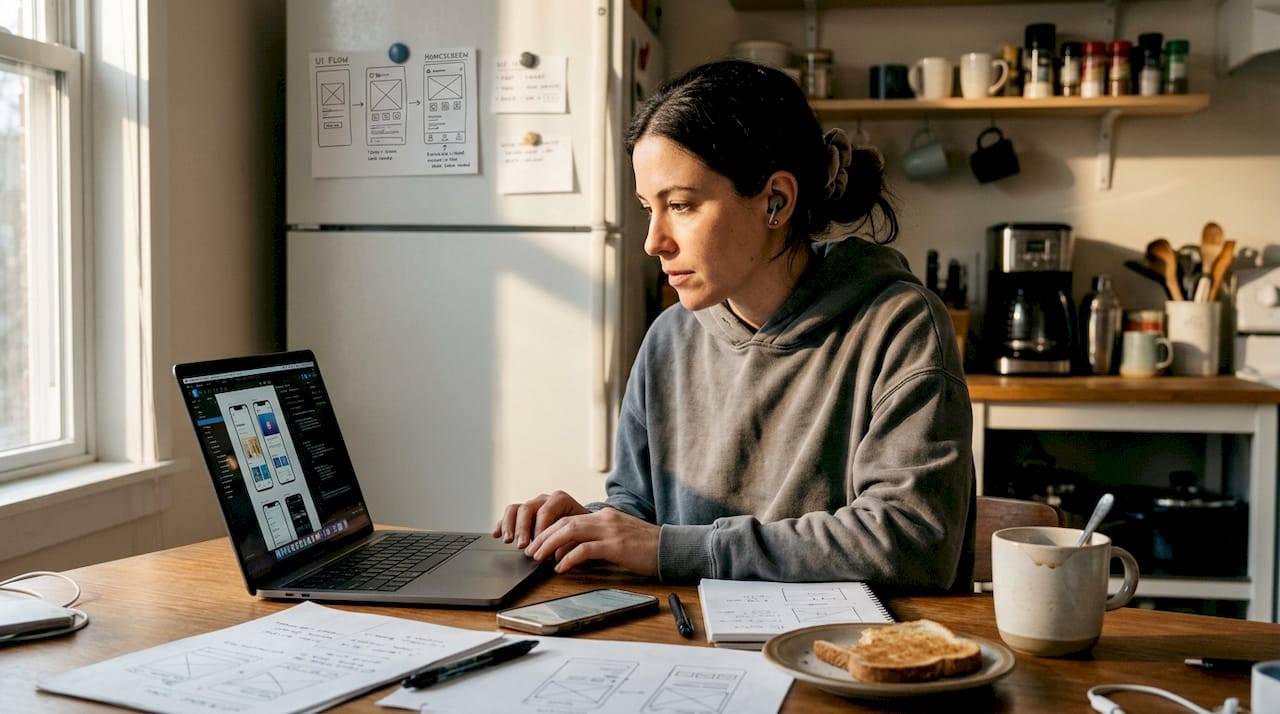
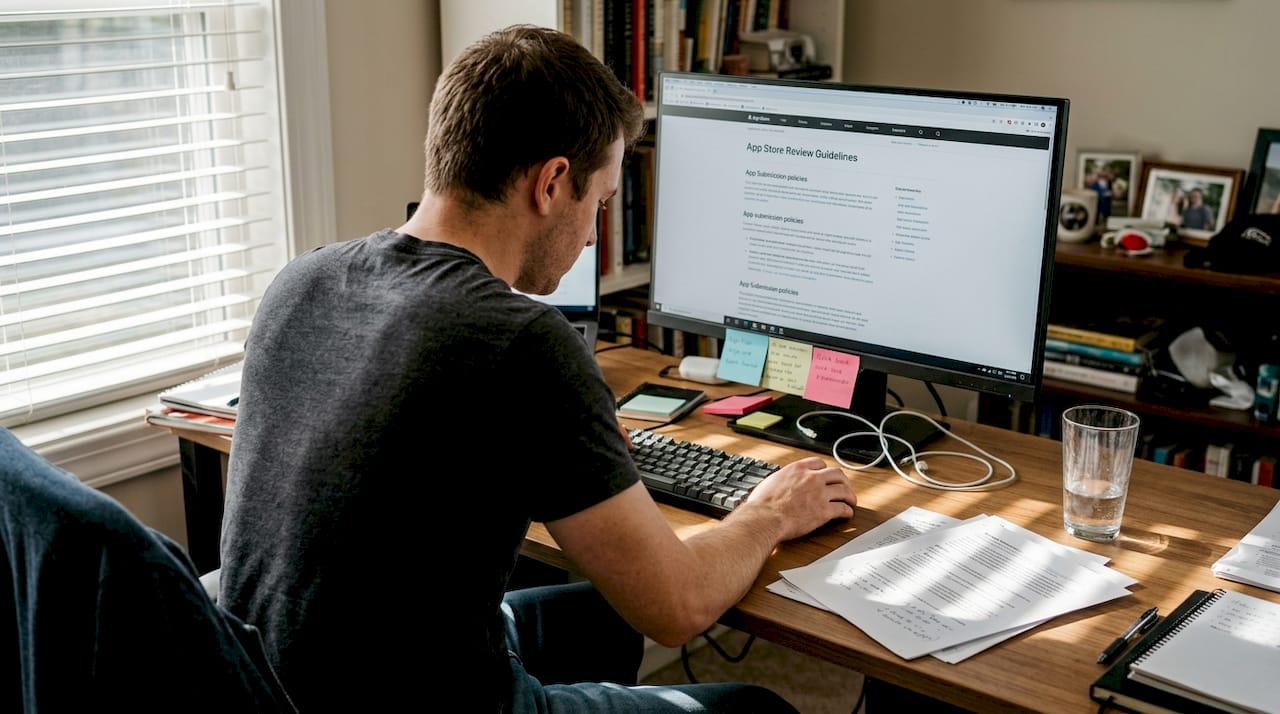
    Person reviews app store guidelines in home office

    Google is more flexible but still has firm boundaries. Screenshots must fall between 320 and 3840 pixels on any side, with a 9:16 or 16:9 aspect ratio. The feature graphic requirement of 1024×500 pixels is mandatory, not optional. Videos on Google Play are hosted on YouTube and linked rather than uploaded directly.

    Here is a side-by-side breakdown of the critical technical specs:

    Requirement Apple App Store Google Play
    Screenshot format PNG/JPEG, RGB, no alpha channel JPEG or 24-bit PNG
    Max screenshots 10 per device per localization 8 per device
    Video length 15 to 30 seconds No strict limit via YouTube
    Video format H.264 or ProRes, max 500MB YouTube hosted
    Pixel flexibility Exact device dimensions required 320 to 3840px, flexible ratio

    The numbered steps below reflect the order in which you should approach compliance:

    1. Confirm the exact pixel dimensions for every device size you support
    2. Export screenshots without alpha channels (transparency layers cause instant rejection)
    3. Encode video previews to the correct codec before uploading to Apple
    4. Upload your YouTube video link to Google Play rather than a raw video file
    5. Verify your feature graphic is exactly 1024×500 pixels for Google Play

    Pro Tip: Build your storyboarding and mockups workflow around the largest required size first. Scaling down preserves quality. Scaling up destroys it.

    Best practices for designing app preview images

    Knowing the technical rules is only half the battle. The other half is designing assets that stop the scroll and communicate value in under three seconds.

    Infographic showing app preview image best practices

    Your first screenshot is your headline. It needs to lead with your single strongest benefit, not a generic welcome screen or a logo. Users scanning search results see a thumbnail roughly the size of a postage stamp. If your text is small or your UI is cluttered, the message disappears entirely. Design for thumbnail readability first, then layer in detail for users who tap through to your full listing.

    Real UI overlays on device mockups outperform illustrated or abstract visuals. Users want to see what the app actually looks like before they commit to a download. Pair real screenshots with a short benefit caption in large, bold text. Keep captions to five words or fewer when possible.

    “Screenshots typically impact conversions more than app icons. Prioritize your first three to five screenshots, lead with your top benefit, and A/B test rigorously because small visual changes can produce outsized conversion lifts.”

    Common mistakes that cost developers installs:

    • Using the default simulator screenshot without any context or caption
    • Cramming too many features into a single image
    • Ignoring localization and using English text for all markets
    • Skipping A/B testing screenshots entirely and assuming the first version is optimal
    • Uploading images with alpha channels, which triggers automatic rejection on Apple

    Pro Tip: Treat your screenshot set like a visual story. Image one introduces the problem your app solves. Images two and three show the solution in action. Images four and five handle objections or highlight secondary features. This narrative structure keeps users engaged long enough to hit install.

    Quarterly updates matter more than most developers realize. App stores reward fresh listings with slightly better visibility, and user expectations shift over time. An asset set that converted well eighteen months ago may now look dated compared to newer competitors.

    Edge cases and advanced tips: maximizing impact with nuanced assets

    With the basics covered, let’s dig into the subtleties that separate good listings from great ones.

    Device-specific assets are non-negotiable if you support multiple form factors. iPad screenshots cannot be the same file as iPhone screenshots. Wear OS, Android TV, and tablet listings each require their own dedicated assets. Submitting phone screenshots for a tablet listing is a fast path to rejection and a poor user experience for anyone who does see your listing.

    Dark mode screenshots are increasingly important. A large share of users run their devices in dark mode full time. Showing only light mode screenshots signals that your app may not support the preference, which can quietly suppress installs among that segment.

    Localization is one of the highest-leverage moves available to small teams. Localized preview assets can boost installs by up to 48% in non-English markets. That is not a marginal gain. For an app with any international audience, translating your screenshot captions and adapting your visuals to local context is one of the best returns on time you can find.

    Advanced workflow tips for small teams:

    • Design all assets at the largest required resolution and scale down for smaller devices
    • Use device-specific mockups to maintain visual consistency across form factors
    • Include at least one dark mode screenshot per device type if your app supports it
    • Never include prices, discounts, or third-party brand marks in your screenshots
    • Avoid showing content that does not appear in the actual app, which is a direct violation of both Apple and Google policies

    Pro Tip: Set a calendar reminder every quarter to audit your preview images. Compare them against your top three competitors. If their assets look sharper or communicate value more clearly, that gap is costing you installs right now.

    One often-overlooked detail: videos autoplay muted in Google Play search results. This means your video must communicate its core message visually, without relying on audio or narration. Design your video as if the sound will never be heard, because for most viewers, it will not be.

    Take your app preview images to the next level

    Mastering the theory behind preview images is a strong start, but execution is where most small teams lose time. Manually resizing assets for every device, checking compliance with Apple and Google specs, and iterating on designs without a streamlined workflow can eat days out of a sprint.

    https://appscreenkit.com

    AppScreenKit is built specifically for this problem. You can create stunning screenshots using pre-built templates that already conform to Apple and Google size requirements, so rejection due to wrong dimensions or missing feature graphics becomes a thing of the past. The platform lets you place your real app UI into professional 3D device mockups, add branded text and gradient backgrounds, and export pixel-perfect assets for every device size with a single click. For teams juggling localization across multiple markets or managing assets for several apps at once, that kind of automation is not a luxury. It is a competitive advantage.

    Frequently asked questions

    What is the difference between app previews and screenshots?

    App previews on Apple are short videos showcasing app functionality, while screenshots are static images presenting the UI. Google groups both under the term preview assets, but the distinction still matters for upload slots and technical requirements.

    How can preview images improve app store conversion rates?

    Optimized images help users understand your app’s value in seconds. Screenshots impact conversions more than app icons, and combining strong design with A/B testing can produce significant lifts in install rates.

    What are common reasons for preview image rejection?

    Rejections most often happen because of wrong pixel dimensions, alpha channels in PNG files, inclusion of prices or third-party brand marks, or screenshots that show content not present in the actual app. Wrong sizes and alpha channels are the most frequent triggers.

    Should I localize my app preview images?

    Yes. Localization can boost installs by up to 48% in non-English markets, making it one of the highest-return investments available to small app teams targeting international users.

    Article generated by BabyLoveGrowth