TL;DR:
- The Play Store listing is a critical conversion tool influencing app installs through visual and textual elements.
- Optimizing visuals, keywords, localization, and maintaining high ratings significantly boosts app visibility and downloads.
- Regular visual experiments and strict policy compliance are essential for sustained success in a competitive app market.
Most app developers spend months building their app and about 20 minutes on their Play Store listing. That imbalance is one of the biggest reasons promising apps fail to gain traction. Your Google Play listing is not just a product page. It is the single most powerful conversion tool you have, and every element on it either earns or loses installs. This guide breaks down exactly what a Play Store listing is, how each component drives real-world behavior, and what you can do right now to get more downloads in 2026.
Table of Contents
- What is a Google Play listing?
- Core components and their impact on downloads
- Play Store optimization strategies for 2026
- Common pitfalls and edge cases for Google Play listings
- Our perspective: What really moves the needle in Play Store listings
- Upgrade your Play Store listing with smarter visuals
- Frequently asked questions
Key Takeaways
| Point | Details |
|---|---|
| Play listing elements | Every app’s listing must include key details like descriptions, visuals, and category information for discovery. |
| Visuals drive installs | Strong, optimized screenshots and graphics greatly increase conversion rates in the Play Store. |
| Optimize for 2026 | Keyword use, localization, and regular visual updates are critical for Play Store success in 2026. |
| Avoid policy pitfalls | Always check your content against the latest Google Play policies to prevent costly rejections. |
What is a Google Play listing?
Think of your Play Store listing as your app’s storefront window. It is the first thing potential users see, and it does three jobs at once: it helps people discover your app, gives them enough information to evaluate it, and removes friction from the install decision.
According to the Google Play Store Listing Guide, a Play Store listing is the product page for an Android app, serving as the primary landing page where users discover, evaluate, and install apps. It includes your app name (up to 50 characters), short description (80 characters), long description (4,000 characters), icon, feature graphic, up to 8 phone screenshots plus 8 tablet screenshots, a promotional video, and category and pricing details.
Each element has a specific job. Your app name and icon handle first impressions in search results. Your short description is the hook that convinces someone to tap “read more.” Your screenshots and feature graphic do the heavy lifting for conversion. And your long description is where you build SEO depth and answer lingering questions.
Here is a quick reference for the core listing elements:
| Element | Character or image limit | Primary function |
|---|---|---|
| App name | 50 characters | Search ranking and first impression |
| Short description | 80 characters | Conversion hook |
| Long description | 4,000 characters | SEO and trust building |
| Screenshots | Up to 8 phone, 8 tablet | Visual persuasion |
| Feature graphic | 1 image (1024×500 px) | Banner-level branding |
| Promo video | 1 YouTube link | Engagement and demo |
Key elements to control in your listing:
- App name: Carries the most weight for keyword ranking
- Icon: The visual anchor across all surfaces
- Screenshots: The top driver of install decisions
- Category: Affects which charts and browse sections you appear in
- Ratings and reviews: Influence trust signals directly
“Your Play Store listing is not a formality. It is the moment of truth between a user’s curiosity and an install. Every element either closes the deal or kills it.”
For a deeper look at how to build each visual asset effectively, the guide on designing great Play Store visuals covers the practical side of making these elements work together.
Core components and their impact on downloads
Now that you know what makes up a Play Store listing, let’s see how these parts drive real-world results.
Users move through three distinct stages when they land on your listing: they search and scan, they evaluate, and they decide. Different components influence each stage.
- Search and scan: Your app name, icon, and star rating are visible in search results before anyone taps your listing. These three elements determine whether someone clicks through at all.
- Evaluation: Once inside your listing, users look at screenshots first, then the short description, and finally the long description if they are still unsure.
- Install decision: Social proof (ratings, review count, download numbers) closes the gap between interest and action.
Here is how strong and weak components compare in practice:
| Component | Strong version | Weak version |
|---|---|---|
| App name | Includes primary keyword naturally | Generic brand name with no context |
| Screenshots | Show real UI with benefit-driven captions | Plain device frames with no context |
| Short description | Clear value proposition in 80 characters | Vague tagline or repeated app name |
| Icon | Distinctive, readable at small sizes | Cluttered, low-contrast design |
| Ratings | 4.5+ stars with recent reviews | Below 4.0 with no recent activity |
Policy compliance is also a component of trust. Google Play policy metadata requires listings to avoid spam, misrepresentation, impersonation, and restricted content. Violating these rules does not just risk removal. It signals to users that your app cannot be trusted, which tanks conversion before a single install happens. You can review the full policy details to stay current.
Pro Tip: Build trust through clarity, not hype. Overpromising in your description or screenshots trains users to leave negative reviews when reality does not match expectations. Honest, specific visuals convert better long-term.

For practical guidance on making your visuals work harder, the articles on boosting downloads with visuals and app preview images offer concrete frameworks you can apply today.
Play Store optimization strategies for 2026
With the basics covered, let’s get tactical: how can your listing outperform in 2026’s crowded app store?
The Play Store has grown more competitive every year, but the optimization levers have also become more precise. Here are the five highest-impact tactics right now:
- Keyword placement in the title: Your app name carries the most ranking weight. Use your primary keyword naturally within the 50-character limit. Do not stuff it; fit it.
- Short description for secondary keywords: Use all 80 characters. This field influences both ranking and click-through rate, so treat it as a mini ad headline.
- Long description for SEO depth: Aim for 3 to 5% primary keyword density and include 15 to 25 unique terms. Google indexes this field, so it contributes to organic discovery.
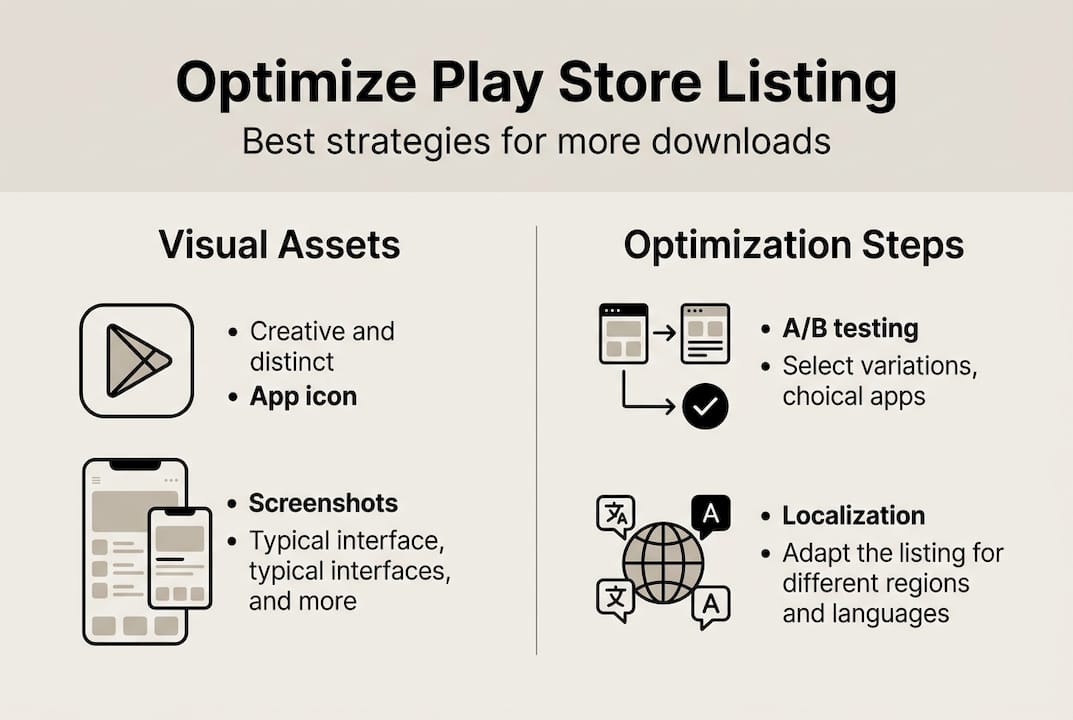
- Localization: Fully localized listings, including screenshots with translated text, consistently outperform English-only listings in non-English markets. This is one of the most underused growth levers.
- Android Vitals and ratings maintenance: ASO optimization mechanics show that maintaining a 4.5+ star rating and keeping your ANR (App Not Responding) rate below 0.47% directly affects your store ranking and visibility.
2026 benchmark callout: Apps targeting top chart positions should aim for a 4.5+ star rating, an ANR rate under 0.47%, and a crash rate under 1.09%. These thresholds affect algorithmic ranking, not just user perception.
Pro Tip: Small visual tweaks and new localizations often outperform major description rewrites. A single new screenshot set for a new language market can drive meaningful install growth with minimal effort.
A/B testing through Google Play’s built-in store listing experiments lets you test icon variants, screenshot orders, and short descriptions against real traffic. Start with your screenshots since they have the highest impact on conversion rate. Use custom store listings (CSLs) to serve different creatives to different audience segments or countries.
For a structured approach, the listing optimization checklist and screenshot optimization tips walk you through each step with clear priorities.
Common pitfalls and edge cases for Google Play listings
Not every app faces the same roadblocks. Here is what you need to watch for so your listing does not get derailed.
Even well-intentioned listings run into problems. Here are the most common mistakes that hurt performance or trigger policy issues:
- Keyword stuffing in metadata: Repeating keywords unnaturally in your title, short description, or long description violates Google Play policy and can trigger demotion or removal.
- Outdated screenshots: Screenshots that show an old UI create a trust gap. Users who install and find a different interface leave negative reviews fast.
- Ignoring tablet screenshots: Many developers upload only phone screenshots. Tablet-specific visuals improve conversion for tablet users and show Google you are invested in the experience.
- Mismatched content ratings: Submitting an incorrect content rating for your app’s actual content is a policy violation that can result in removal. Always use the official rating questionnaire.
- Neglecting responses to reviews: Not responding to negative reviews signals abandonment. Active responses improve perceived quality and can directly influence rating scores over time.
Edge cases require specific thinking. Policy and edge case guidance notes that low-traffic apps need more dramatic test variants to reach statistical significance, multiple CSLs prioritize the most specific match, and category demand decline limits what ASO alone can achieve.
If your listing receives a policy warning, address it immediately. Google gives a grace period for corrections, but repeated violations escalate to suspension. Document every change you make so you can reference it if you need to appeal.
Pro Tip: Before every major listing update, cross-check your content against the current Google Play policies. Policies update regularly, and what was acceptable last year may trigger a flag today.
For developers focused on building a recognizable brand through their visuals, the guide on branding with app screenshots shows how to create consistency across every listing asset.
Our perspective: What really moves the needle in Play Store listings
You have seen the official frameworks and the common traps. Here is what top performers actually do differently.
Most optimization advice circles around titles and descriptions because those are easy to measure and easy to change. But the apps that see 30 to 100% conversion rate jumps are almost always doing something different with their visuals, not their copy.
Screenshots and feature graphics are where user psychology actually plays out. A user spends an average of 7 seconds scanning a listing before deciding. Text does not convert in 7 seconds. Images do. The developers who treat their image workflow examples as a living, iterative process rather than a one-time launch task consistently outperform those who rewrite their descriptions every quarter.
The uncomfortable truth is that most developers do a big visual overhaul at launch and then leave it alone for 18 months. Meanwhile, top performers are running small visual experiments every 4 to 6 weeks. Category and app maturity matter too. A new app in a competitive category needs bolder visual differentiation than an established app with strong brand recognition. There is no universal formula, but the direction is clear: iterate visually, localize creatively, and treat your listing as a product in itself.
Upgrade your Play Store listing with smarter visuals
You have seen what works. Here is how you can put these strategies into action fast.
AppScreenKit is built specifically for developers and marketers who want professional Play Store visuals without the design overhead. Upload your app screens, customize them with 3D device mockups, add benefit-driven captions, and export pixel-perfect images sized for every device in one click.
Start with the guide on how to design Play visuals that convert, then check the full breakdown of required visuals for Play Store to make sure every asset meets Google’s specs. When you are ready to build, generate app screenshots with AppScreenKit’s free starter plan and see how fast a polished listing comes together.
Frequently asked questions
What does a Google Play listing include?
A Google Play listing includes your app’s name, icon, short and long descriptions, screenshots, feature graphic, promo video, and category and pricing information. Specifically, the listing includes up to 8 phone and 8 tablet screenshots, a 50-character app name, and a 4,000-character long description.
How do I improve my app’s Play Store listing in 2026?
Focus on keyword optimization, fresh visuals, localization, A/B testing, and maintaining high ratings plus Android Vitals for best results. The optimization mechanics prioritize a 4.5+ star rating and an ANR rate under 0.47% as ranking factors.
What are the main policy violations to avoid in a Google Play listing?
Avoid using misleading content, impersonating others, including restricted material, and keyword spam to stay compliant with Google Play policies. Google Play policy metadata is clear that violations can result in listing removal or account suspension.
Why are visuals so important for Play Store conversion rates?
Strong app visuals drive higher user engagement and install rates by building trust and quickly communicating value. Users decide within seconds of scanning a listing, and images process far faster than text, making screenshots the single highest-impact element for improving conversion rates.
Leave a Reply