TL;DR:
- Accurate, current screenshots that reflect the live app are essential to avoid rejection.
- Content violations include misleading visuals, prohibited text, and mismatched platform frames.
- Following technical standards and a disciplined workflow significantly reduces re-submission delays.
You’ve built a solid app. The code is clean, the UX is polished, and you’re ready to ship. Then the rejection email lands in your inbox, not because of a bug or a policy violation in your app logic, but because of your screenshots. It’s one of the most frustrating moments in app development, and it happens to developers at every level. The good news: the vast majority of screenshot rejections stem from a small set of fixable mistakes. Understand those mistakes, and you can cut your submission cycle significantly and get your app in front of users faster.
Table of Contents
- The main reasons screenshots get rejected
- Critical content and design violations to avoid
- Technical errors: Formats, dimensions, and quality standards
- How to future-proof your app screenshots
- A hard truth: Screenshot rejection is mostly preventable
- Get screenshots approved faster with AppScreenKit
- Frequently asked questions
Key Takeaways
| Point | Details |
|---|---|
| Show real app UI | Screenshots must represent the current, real app—not mockups or outdated designs. |
| Avoid prohibited content | Never include pricing, outside trademarks, or promotional text in your store images. |
| Pass technical checks | Use correct formats, dimensions, and high-resolution images to pass both manual and automated reviews. |
| Stay updated | Adapt screenshots after every major UI update and review the latest store guidelines. |
The main reasons screenshots get rejected
Both the Apple App Store and Google Play maintain strict rules around what screenshots can and cannot show. The core principle for both platforms is accuracy. Your screenshots must show what the app actually does, not what you wish it did, not a polished mockup, and not a feature you’re planning to release next quarter.
Apple’s guidelines are explicit here. Apple App Store guidelines state that screenshots must accurately reflect the app’s actual functionality and UI, not mockups, future features, or misleading representations (Guideline 2.3). That means if your screenshots show a dashboard view that isn’t in the binary being submitted, you’re going to get rejected. Period.
Google Play holds the same standard. Google Play screenshot policies require that screenshots accurately represent the app, with no misleading imagery, no iOS-style device frames on Android submissions, no low-resolution images, and no prohibited text like rankings or pricing claims.
Here’s what tends to catch developers off guard:
- Mockup images: Showing a beautifully designed concept that isn’t the real UI
- Future features: Highlighting functionality that isn’t live in the submitted version
- Outdated UI: Submitting screenshots from an older version after a design overhaul
- Platform frame mismatches: Using iPhone frames in Google Play submissions
- Promotional claims: Including star ratings, “#1 App” badges, or pricing text
- Third-party trademarks: Displaying logos or branded content you don’t have rights to
Apple and Google both treat misleading screenshots as a form of misrepresentation, not just a formatting issue. This means reviewers can reject your entire submission, not just flag the screenshots.
Understanding the full scope of app store requirements across both platforms before you finalize your visuals is the single most effective way to avoid this category of rejection.
One key nuance: Apple tends to use human reviewers for screenshot compliance, while Google Play increasingly relies on automated systems. This means Apple rejections often come with detailed feedback, while Google Play may simply flag your upload without much explanation. Knowing which platform you’re dealing with shapes how you troubleshoot.
Critical content and design violations to avoid
Let’s get specific about the types of content that will get your screenshots pulled, because the details matter more than most developers realize.
Apple’s guidelines (specifically 2.3.7, 2.3.8, and 2.3.10) prohibit screenshots containing pricing information, non-iOS references, third-party trademarks, or age-inappropriate material. Even a small price tag graphic in the corner of a screenshot qualifies as prohibited pricing content. One restricted element is enough to trigger rejection.
Here’s a quick comparison to keep handy:
| Element | Apple App Store | Google Play |
|---|---|---|
| Pricing text (e.g., “$4.99/month”) | Prohibited | Prohibited |
| “#1 App” or ranking claims | Prohibited | Prohibited |
| iPhone frames in Android screenshots | N/A | Prohibited |
| Third-party logos | Prohibited | Prohibited |
| Blurry or low-resolution images | Rejected | Rejected |
| Features not in the binary | Rejected | Rejected |
Here’s a numbered breakdown of the most common content violations in order of frequency:
- Pricing or subscription cost text visible anywhere in the screenshot
- Platform-specific device frames used on the wrong store (iOS frames on Google Play)
- Third-party brand logos included without licensing
- Promotional superlatives like “Best,” “#1,” or “Award-Winning”
- Screenshots from a different version of the app than the one submitted
The consequence of even one restricted element is a full submission hold. You don’t get a partial pass. Reviewers don’t approve the rest of your metadata while you fix one screenshot. Everything stops.
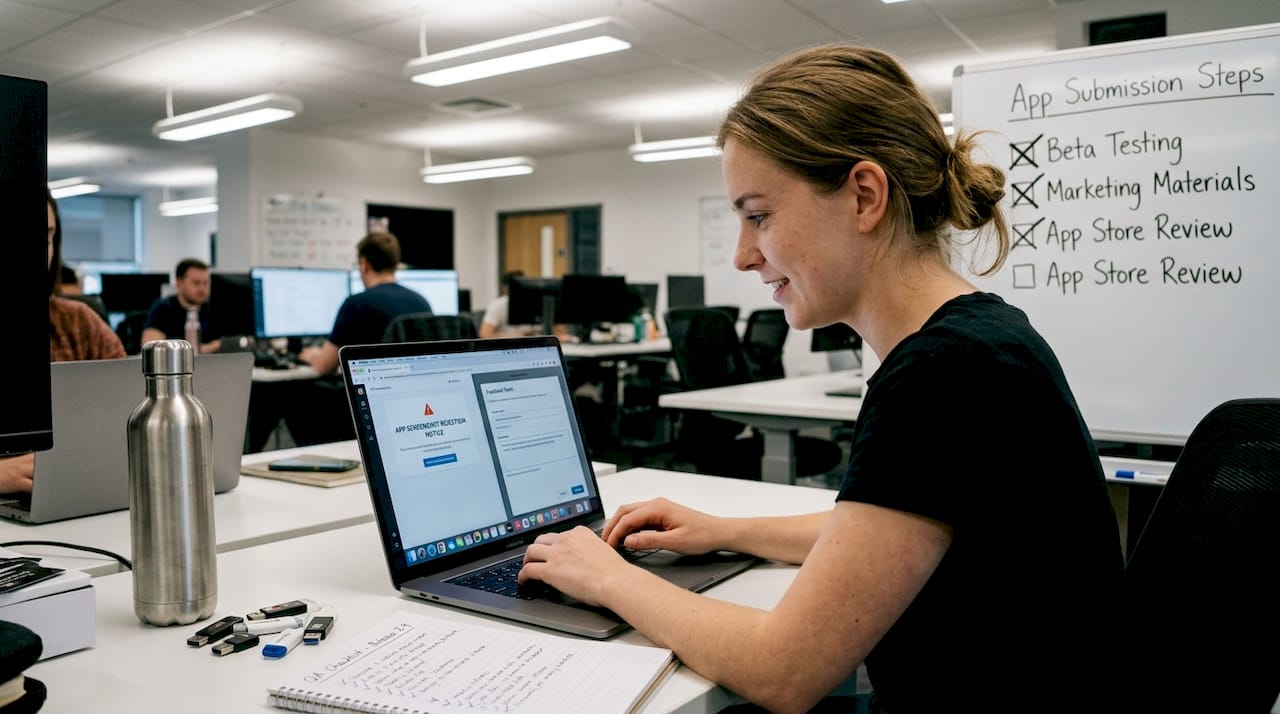
Before uploading, run through a store listing checklist to catch these issues. It takes less time than re-submitting.
Pro Tip: Screenshot each screen of your actual app build, not your design files, and compare them side by side with your submission screenshots before uploading. If the UI doesn’t match exactly, fix it before review.
For inspiration on what compliant, high-converting screenshots look like in 2026, it’s worth exploring the latest visual trends 2026 to understand what reviewers expect visually.
Technical errors: Formats, dimensions, and quality standards
Content violations are visible to the human eye. Technical violations are sneakier. They often get flagged before a human reviewer ever sees your submission, and the error messages can be cryptic.
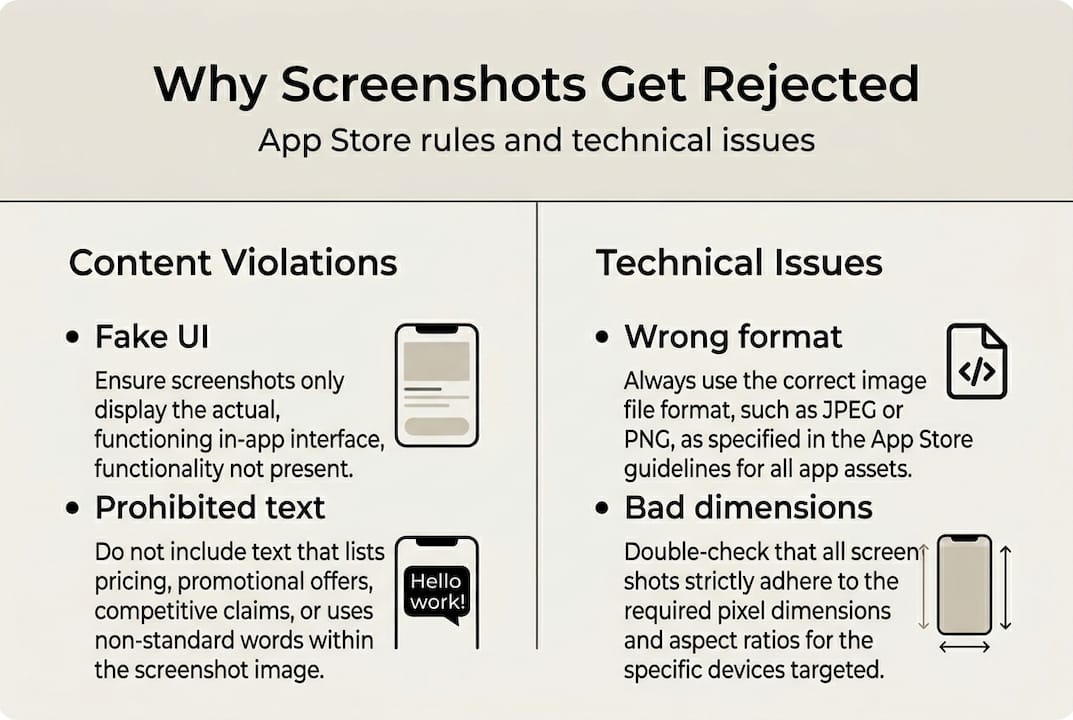
Here are the key technical requirements to get right:
| Requirement | Apple App Store | Google Play |
|---|---|---|
| File format | PNG or JPEG | PNG or JPEG (no alpha) |
| Min resolution (px) | Varies by device size | 320px minimum |
| Max file size | 500MB per asset | 8MB per screenshot |
| Alpha channel in PNG | Allowed | Not allowed |
| Screenshot count | 1 to 10 per device | 2 to 8 per device |
Google Play’s automated system flags a specific set of technical problems. Google Play Console requirements identify blank screenshots, wrong formats (including PNGs with alpha channels), and images outside accepted size limits as common rejection triggers.
The alpha channel issue is a silent killer. A PNG saved with transparency looks normal on your screen, but Google Play’s upload system reads the file metadata and rejects it immediately. Many developers don’t realize their design tool is exporting alpha-enabled PNGs by default.
Other technical traps to watch for:
- Blank screenshots: Sometimes caused by exporting before the UI fully renders in your screenshot tool
- Wrong device dimensions: Submitting a 6.1-inch screenshot for a 6.7-inch slot
- Compressed files losing quality: Over-optimized images that fall below resolution minimums
- Incorrect color profiles: Some export tools default to CMYK, which stores don’t accept
Pro Tip: Always export screenshots at the largest required resolution first, then scale down for smaller device slots. Going the other direction (upscaling small images) produces the blurry, pixelated results that automated checks flag instantly.
For a deeper breakdown of how to optimize your files before upload, the guide on screenshot optimization covers both quality settings and export workflows in detail.
How to future-proof your app screenshots
The guidelines don’t stay still. Apple and Google both update their policies regularly, and automated enforcement is getting more aggressive. Building a screenshot workflow that accounts for this is the difference between teams that ship fast and teams that get stuck in review loops.
Here’s a numbered workflow that reduces rejection risk across every release:
- Lock your screenshot sources to builds that match the submitted binary, not design prototypes
- Create a screenshot version log that records which UI state each image captures and which app version it belongs to
- Run a pre-upload checklist that covers file format, resolution, prohibited content, and platform-specific frame rules
- Assign one person per release to own screenshot compliance review before submission
- Set a guideline review reminder quarterly to check for policy updates from Apple and Google
Automated enforcement is only going to increase. Wrong dimensions or resolution already trigger upload errors algorithmically, and blank or low-resolution screenshots are flagged before a human ever reviews them. Your workflow needs to catch these issues before the store does.
Teams that treat screenshots like code, with versioning, review steps, and ownership, consistently move faster through the approval process than those who treat screenshots as a last-minute task.
Pro Tip: After any major UI update, schedule a screenshot audit as part of your release checklist, the same way you’d schedule regression testing. Outdated screenshots are one of the most common post-update rejection causes.
For teams who want a strong foundation, the branding tutorial walks through how to build brand-consistent screenshot sets that hold up across multiple releases without needing a full redesign each time.
A hard truth: Screenshot rejection is mostly preventable
Here’s something most articles won’t say directly: screenshot rejections are almost never about bad design. They’re about bad process. The developers who get rejected repeatedly aren’t less talented. They’re moving fast and skipping the systems that catch mistakes.
Successful teams treat screenshots the way they treat code. They use version control, assign review ownership, and automate what they can. They follow approval best practices not because they’re being cautious, but because they’ve learned that a five-minute checklist review saves hours of re-submission delays.
The uncomfortable reality is that cutting corners on screenshots doesn’t just affect indie developers. Large teams with dedicated design resources still get rejected because communication breaks down between designers and whoever manages the app store listing. A designer exports a beautiful mockup. The submission manager uploads it without checking whether it matches the live UI. Rejection follows.
Building a culture where screenshot compliance is treated as a shared, non-negotiable step rather than someone else’s job is the actual fix. The guidelines are learnable. The formats are manageable. The real risk is the assumption that screenshots are easy, which makes them the thing no one owns until it’s too late.
Get screenshots approved faster with AppScreenKit
If you’re tired of rejection emails and re-submission cycles, AppScreenKit was built specifically for this problem. It gives you an App Store Screenshot Generator that exports pixel-perfect, store-compliant images in the correct formats and dimensions for both Apple and Google Play, with a single click.
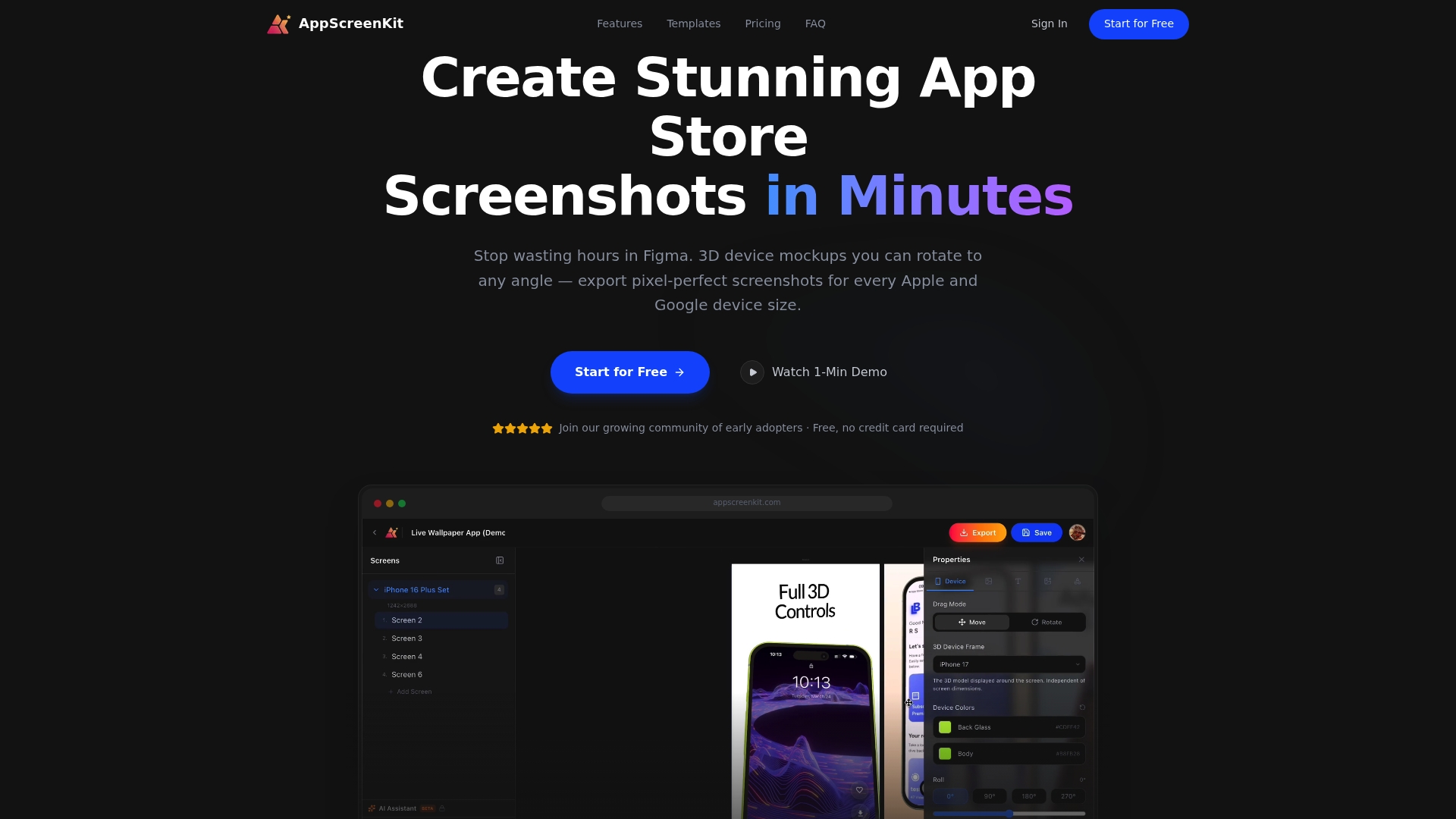
You get professional 3D device mockups, customizable branded text, gradient backgrounds, and pre-built templates that follow current store guidelines. No Figma required. No manual resizing. No guessing whether your PNG has an alpha channel. The platform handles the technical compliance so you can focus on making your app look great. Check out the full breakdown of submission rules and visuals to see exactly how AppScreenKit maps to what reviewers expect.
Frequently asked questions
What are the most common reasons Apple rejects app screenshots?
Apple rejects screenshots that misrepresent the app, show features not in the binary, or include prohibited content like pricing info or non-iOS elements, all covered under Guideline 2.3.
How does Google Play flag technical issues in screenshots?
Automated checks flag blank screenshots, improper formats like alpha-channel PNGs, and out-of-range dimensions during the upload process, often before a human reviewer sees your submission.
Can I show pricing or promotional text in my screenshots?
No. Both platforms prohibit pricing and overt promotional text. Apple’s guidelines 2.3.7 through 2.3.10 are explicit about this, and Google Play enforces the same rule.
How often should I update my app screenshots?
Update your screenshots with every major UI change, new feature release, or store guideline update. Apple’s Guideline 2.3 requires screenshots to match the live binary precisely, and outdated screenshots after a UI refresh are a common rejection cause.
Leave a Reply