TL;DR:
- Precise screenshot dimensions are essential to avoid store rejection and ensure quick app approval.
- Apple requires exact pixel sizes per device, while Google Play allows flexible ranges with aspect ratio limits.
- Proper workflow and tools help maintain compliance, improve visual quality, and enhance user trust.
Getting your app rejected over screenshot dimensions is one of the most frustrating delays a developer can face. You’ve spent weeks polishing your product, and then a submission error over pixel counts holds up your launch. Both Apple and Google Play enforce specific screenshot size requirements, and the rules differ more than most developers expect. This article breaks down every device size, file format rule, and platform requirement you need, so you can submit with confidence and stop losing time to preventable rejections.
Table of Contents
- Understanding screenshot requirements: Why precision matters
- Apple App Store screenshot sizes: Detailed device list
- Google Play screenshot size requirements: All you need to know
- Platform comparison: Apple vs. Google Play screenshot specs
- Common pitfalls and expert workflow tips
- Why mastering screenshot sizing means more than just compliance
- Streamline screenshot creation with AppScreenKit
- Frequently asked questions
Key Takeaways
| Point | Details |
|---|---|
| Apple demands exact sizes | Apple App Store rejects screenshots that don’t match device-specific pixel requirements. |
| Google Play is flexible | Google Play allows a wider range of screenshot sizes, making cross-device uploads easier. |
| Common errors delay launches | Most app rejections come from incorrect screenshot dimensions or reused images. |
| Use workflow tools wisely | Automation tools need regular updates to handle the latest device screenshot specs. |
| Right sizing boosts trust | Polished, correctly sized screenshots build user confidence and can improve app downloads. |
Understanding screenshot requirements: Why precision matters
Screenshot compliance isn’t a suggestion. Both Apple and Google Play treat it as a hard gate. If your images don’t meet the exact specifications, your submission gets bounced before a single reviewer sees your app.
Apple operates a zero-tolerance policy when it comes to pixel dimensions. Their system checks uploaded screenshots against a fixed list of accepted sizes per device. There’s no rounding, no approximation, and no forgiveness for screenshots that are even a handful of pixels off. Google Play takes a slightly more flexible approach, but that flexibility has limits, and misunderstanding those limits leads to just as many headaches.
The impact goes beyond a delayed launch. Every hour your app spends in a rejection loop is time potential users spend downloading a competitor. For indie developers and small teams without a cushion of runway, that delay can genuinely hurt. Common screenshot mistakes like submitting phone screenshots for iPad slots or using screenshots exported at the wrong resolution are far more frequent than most developers realize.
“Uploading wrong sizes is a top rejection reason; use Xcode Simulator for native resolutions rather than resizing device captures.”
Here’s a practical workflow to capture screenshots correctly from the start:
- Open your app in Xcode Simulator for each target device size.
- Use the Simulator’s built-in screenshot tool to capture at native resolution.
- Avoid scaling or resizing captures after the fact, as this degrades quality and risks size mismatches.
- Validate dimensions in any image editor before uploading to App Store Connect or the Google Play Console.
- Check screenshot size compliance guidelines every time Apple or Google releases a new device, since specs change with new hardware.
Pro Tip: Build screenshot capture into your release checklist as a standalone step. Don’t leave it for the final hour before submission.
Apple App Store screenshot sizes: Detailed device list
Having established why exact sizing matters, we now break down Apple’s requirements device by device. Apple groups screenshot requirements by display size rather than by device name, which makes sense as hardware generations come and go, but the display dimensions stay consistent.
Apple requires exact pixel dimensions for screenshots based on device display sizes. Screenshots must be JPEG or PNG format, no transparency, and use the RGB color space. You can upload between 1 and 10 screenshots per device type.

| Display size | Portrait (px) | Landscape (px) |
|---|---|---|
| 6.9-inch iPhone | 1320 x 2868 | 2868 x 1320 |
| 6.7-inch iPhone | 1290 x 2796 | 2796 x 1290 |
| 6.5-inch iPhone | 1284 x 2778 | 2778 x 1284 |
| 6.1-inch iPhone | 1179 x 2556 | 2556 x 1179 |
| 5.5-inch iPhone | 1242 x 2208 | 2208 x 1242 |
| 13-inch iPad Pro | 2064 x 2752 | 2752 x 2064 |
| 12.9-inch iPad Pro | 2048 x 2732 | 2732 x 2048 |
| 11-inch iPad Pro | 1668 x 2388 | 2388 x 1668 |
A few things worth noting about this table. The 6.9-inch display is the current flagship size, so you absolutely need those screenshots ready. Apple’s current policy allows you to skip some smaller device sizes if you provide the largest, but knowing why screenshots get rejected is just as important as knowing the right numbers.
Apple requires separate screenshots for iPad if your app supports it. The primary size is 2064 x 2752 for the 13-inch iPad. You cannot reuse iPhone screenshots here. The layouts, content hierarchy, and visual weight of an iPad listing are different enough that Apple simply won’t accept a phone screenshot in an iPad slot.
Pro Tip: Design your screenshots for the 6.9-inch and 13-inch iPad displays first. Every other size flows from those two anchors, and you’ll save significant time during the export phase.
Bullet points worth remembering for Apple submissions:
- JPEG or PNG only, no animated formats
- No transparency or alpha channels
- RGB color space is mandatory
- Landscape is accepted but portrait is strongly recommended for phone listings
- Screenshots must show actual app UI, not marketing imagery alone
Google Play screenshot size requirements: All you need to know
With Apple outlined, let’s see how Google Play’s approach differs and what that means for your workflow. Google Play gives developers considerably more flexibility in screenshot dimensions, but that flexibility comes with its own constraints.
Google Play screenshot requirements specify a minimum of 320px and a maximum of 3840px on any side. The aspect ratio must not exceed 2:1 in either direction. You can upload 2 to 8 screenshots per device type, and the file format must be JPEG or 24-bit PNG with no alpha channel. Each file has a maximum size of 8MB.
| Requirement | Google Play specification |
|---|---|
| Minimum dimension | 320px on any side |
| Maximum dimension | 3840px on any side |
| Aspect ratio | Must not exceed 2:1 |
| Screenshots per device | 2 to 8 |
| Accepted formats | JPEG, 24-bit PNG (no alpha) |
| Max file size | 8MB per image |
| Device types | Phone, 7-inch tablet, 10-inch tablet, Chromebook, TV, Wear OS |
One of the most common mistakes developers make is assuming that “flexible” means “anything goes.” The 2:1 aspect ratio rule catches a lot of people off guard. An ultra-wide screenshot or a very tall image that pushes past that ratio will fail validation. The sweet spot that works for most phone listings is 1080 x 1920 px, which sits comfortably within the allowed range and renders cleanly on virtually every Android device.
Unified design across device types is worth planning early. If you’re supporting phones and tablets on Google Play, try to create a design system for your screenshots that translates cleanly from a phone aspect ratio to a tablet aspect ratio. This is much easier than retrofitting tablet screenshots at the last minute. Check out the submission rules and visuals guide and the Google Play visuals guide for deeper strategies on this.
Key Google Play requirements to bookmark:
- Phone and tablet submissions are tracked separately in the Play Console
- TV and Wear OS each have their own screenshot slots and requirements
- File names don’t affect submissions but organized naming saves time at scale
- Google allows more creative freedom in screenshot content than Apple, but still prohibits misleading visuals
Platform comparison: Apple vs. Google Play screenshot specs
Now that you know each store’s standards, here’s a direct comparison to inform your asset pipeline. Knowing both sets of rules side by side helps you plan your design work more efficiently and avoid duplicated effort.
| Requirement | Apple App Store | Google Play |
|---|---|---|
| Dimension rule | Exact pixel match required | Min 320px, max 3840px per side |
| Aspect ratio | Fixed per device | Not exceeding 2:1 |
| Screenshots per device | 1 to 10 | 2 to 8 |
| File formats | JPEG, PNG | JPEG, 24-bit PNG |
| Alpha/transparency | Not allowed | Not allowed |
| Color space | RGB required | Not specified |
| Max file size | 500MB per video, images unspecified | 8MB per image |
Apple’s strict exact-size requirement contrasts sharply with Google Play’s flexible ranges. The practical advice for most indie developers is to prioritize Apple’s specs first, then use 1080 x 1920 as your cross-platform base for Android. This means your Apple screenshots are native resolution, compliant, and sharp, while your Android assets are built to a dimension that falls cleanly within Google’s range without any awkward cropping.
Here’s when to use cross-platform sizes and when to go custom:
- Use 1080 x 1920 as a starting point for Google Play phone screenshots if you want a single export that covers multiple Android devices.
- Always custom-export for Apple submissions because the exact dimensions are non-negotiable.
- For screenshot optimization tips, treat iPad and Android tablet screenshots as separate design tasks, not afterthoughts.
- If you’re stretched on time, prioritize the 6.9-inch iPhone and 1080 x 1920 Android exports, then fill in tablet sizes before launch.
The dangerous trap is assuming a screenshot that passes Google Play will work on the App Store. It almost certainly won’t. The reverse is equally true. Build platform-specific export pipelines from the start, even if your designs share the same visual language.
Common pitfalls and expert workflow tips
Having compared platforms, let’s look at practical snags and savvier ways to conquer them.
One of the fastest-moving problems is tool lag. Automation tools like fastlane are incredibly useful, but they require updates to support new device sizes. Fastlane has documented issues where older versions rejected valid Apple specs for new sizes like 1320 x 2868 (the 6.9-inch iPhone) and 2752 x 2064 (the 13-inch iPad landscape). If you haven’t updated your fastlane configuration since a new device launched, your pipeline may be silently generating wrong-size outputs.
“If higher resolution screenshots are not provided, Apple automatically scales from available sizes, for example scaling 6.9-inch images for smaller displays if the smaller size screenshots are missing.”
This sounds convenient, and it is, but scaled images often look slightly off. Text rendering suffers, and device frames can look misaligned. Providing screenshots for every relevant size is still the right approach, even if Apple gives you a fallback.
Here’s a proven expert workflow for your screenshot pipeline:
- Capture at native resolution using Xcode Simulator for each iPhone display size your app targets.
- Export Google Play assets at 1080 x 1920 unless you’re targeting specific high-density devices that warrant larger outputs.
- Update fastlane and any CI/CD screenshot automation tools before every major Apple device cycle.
- Validate all exports against the official spec list before submitting, not during.
- Keep a dated folder of approved screenshots for each release, so rollbacks don’t require starting over.
Avoiding common mistakes in app screenshots often comes down to process discipline rather than technical knowledge. Developers who build validation steps into their workflow catch problems before submission instead of after rejection. For a deeper look at how to build visual identity into your screenshots, the branded screenshot strategies resource covers the intersection of compliance and design in practical detail.
Pro Tip: Create a one-page internal reference document that lists your target device sizes for both stores, the current tool versions you’re using, and the last date you verified specs against official documentation. Review it at every release cycle.
Why mastering screenshot sizing means more than just compliance
There’s a view in the indie dev community that screenshot compliance is purely a technical checkbox. Get the right pixel dimensions, pass the validator, move on. That framing misses something important.
The moment a potential user opens your app listing, your screenshots are doing the selling. A stretched image or a screen that’s clearly been scaled from a different device doesn’t just look bad. It signals that you didn’t pay attention. And in a crowded store where a user makes a decision in under three seconds, that signal is expensive.
Preview images directly influence conversions, and getting sizing right is the foundation of every conversion gain. A pixel-perfect screenshot in the right slot tells the user, without a word, that this developer cares about their craft. It’s a form of trust building that happens before the download button is ever pressed.
The compliance layer and the design layer aren’t separate concerns. They’re the same concern viewed from different angles. When your screenshots are correctly sized, they render sharply on every device, in every territory, in every app store context. When they’re even slightly off, you’re gambling with your first impression at scale.
For small teams without dedicated designers, this is where smart tooling closes the gap. The answer isn’t to hire a designer for every release cycle. It’s to build a process where compliance and quality happen simultaneously, not in sequence.
Streamline screenshot creation with AppScreenKit
Ready to simplify your process and boost your app’s appeal? Managing screenshot dimensions, device mockups, and platform rules across two stores takes real time and careful attention to detail.
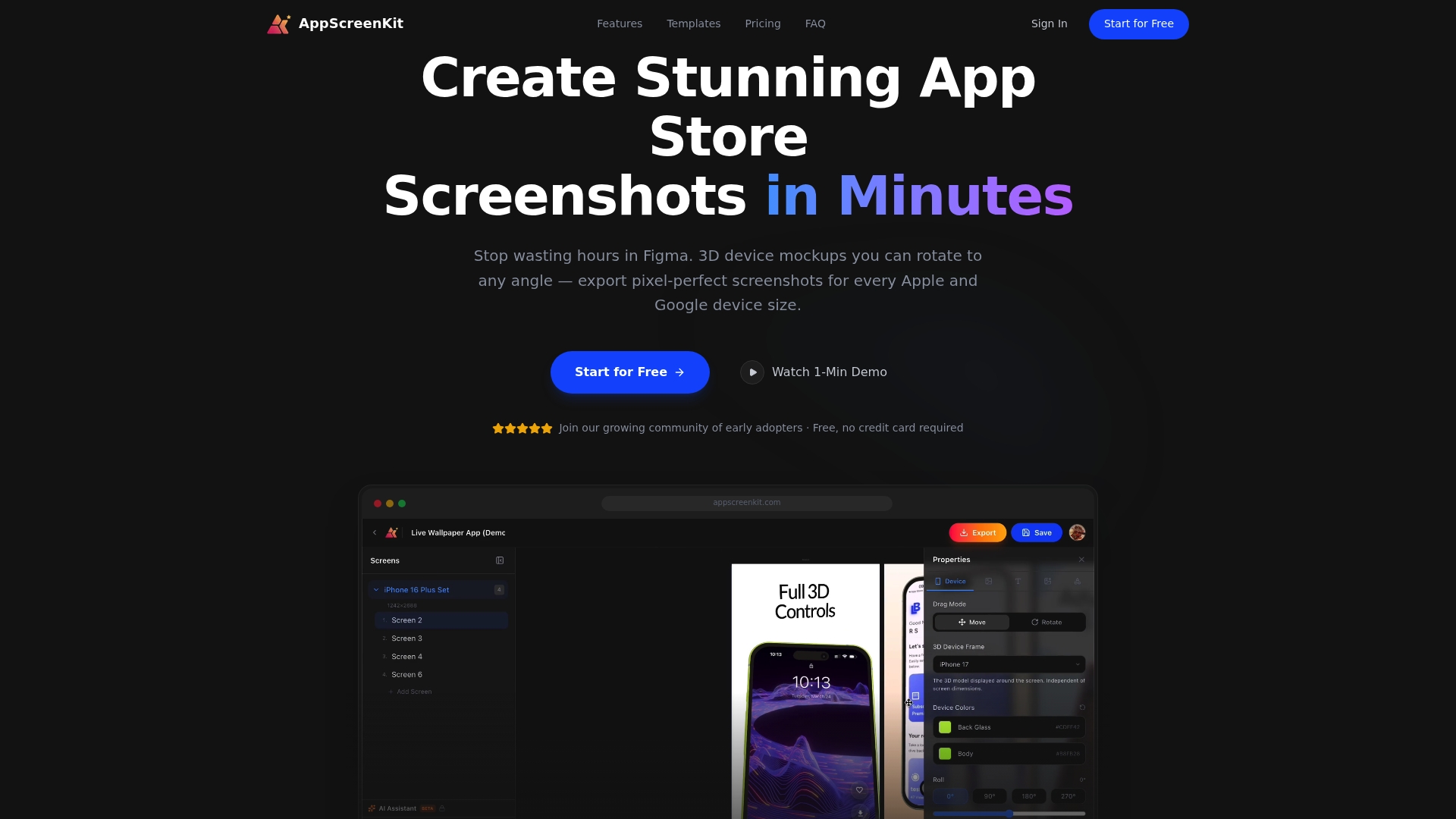
AppScreenKit is built specifically for indie developers and small teams who need pixel-perfect screenshots without the overhead of complex design tools. You can upload your app images, drop them into professional 3D device mockups, add branded text and gradient backgrounds, and export to every required size for both Apple and Google Play in a single workflow. The platform stays current with visual trends for app stores so your assets look modern at launch. From templates to the full submission rules guide, AppScreenKit gives you everything you need to go from raw captures to store-ready screenshots without the guesswork.
Frequently asked questions
What happens if my screenshots don’t match device requirements?
If your screenshots aren’t the right size, your app may face rejection or delays until you resubmit compliant images. Uploading wrong sizes is one of the top rejection reasons on the App Store.
Can I use iPhone screenshots for iPad on the App Store?
No, Apple requires separate screenshots for iPad; you cannot reuse iPhone images for iPad submissions under any circumstances.
Is there a universal screenshot size that works for both stores?
While 1080 x 1920 px is a safe minimum for Google Play, Apple demands exact device matches, so there is no true universal solution that satisfies both platforms simultaneously.
How many screenshots can I upload per device on each store?
Apple allows 1 to 10 screenshots per device type, while Google Play allows 2 to 8 per device type, including phone, tablet, and other form factors.
Leave a Reply